 Sera
Sera功能导航
Text files and protected scratch disk
配置文件夹保存您添加的文件。点击 TXT 使用内置记事本;Word 和 Excel 文件由外部程序打开。电脑上的原文件仍单独保留,不会自动删除。
查看章节Downloading and launching your bots
在这里运行 JS/CJS、Python 脚本、EXE 程序和 Eva。添加文件、安装所需运行环境,并查看状态和日志。程序必须支持您的操作系统。
查看章节Eva
Eva 负责执行浏览器操作。您给自己的 AI 布置任务,AI 向 Sera 发送命令,Eva 在独立的后台 Brave 或 Chrome 中执行。Eva 不自带聊天界面或付费 AI 订阅。
查看章节Bot: your Google Cloud project
这个助手只帮助创建用于 Drive 的个人 Google Cloud 项目,与 Eva 不同。Google 登录、验证码和授权仍由您确认。
查看章节Copy to Google Drive and second PC
Google Drive 将加密副本保存在您自己的账号中。连接 Google、保存副本,再在另一台电脑恢复。之后的更改需要重新保存副本。
查看章节快捷键与退出
打开更多 → 键盘快捷键。Windows/Linux 用 Ctrl + Shift + Q 退出,Mac 用 Command + Shift + Q。请先保存文档。最小化窗口不等于退出。
查看章节Sera 免费使用
月度和年度使用费用均为 $0。VPN、付费 AI 服务和扩展需另行购买。 在最新版 Sera 的使用权限页面选择 $0 的月度或年度方案,然后激活免费使用。激活需要联网。到期后可再次免费激活。如果只看到付款按钮,请更新应用。
查看章节01. Installation and first launch
独立的空白Sera
- Download Sera-clean-Windows.zip.
- Completely unpack the archive into a new empty folder, for example “Sera-clean”.
- Run Sera.exe from this folder. Do not move old data or cache folders there.
- Create a new personal vault. There are no profiles, VPN or connected Google.
This copy keeps the data close to itself thanks to the Sera.portable file. Save the entire folder: it will contain your data. Don't re-extract on top of your working copy if you want more empty space.
Typical installation
- Download Sera-setup.exe. This is a Windows x64 build.
- If Sera is already open, close it and its browsers. Launch the installer and select an installation location.
- Open Sera. On your new computer, create a personal vault: set a secure phrase or key and save it separately.
- Complete the initial setup. In the new storage, the list of profiles is empty.
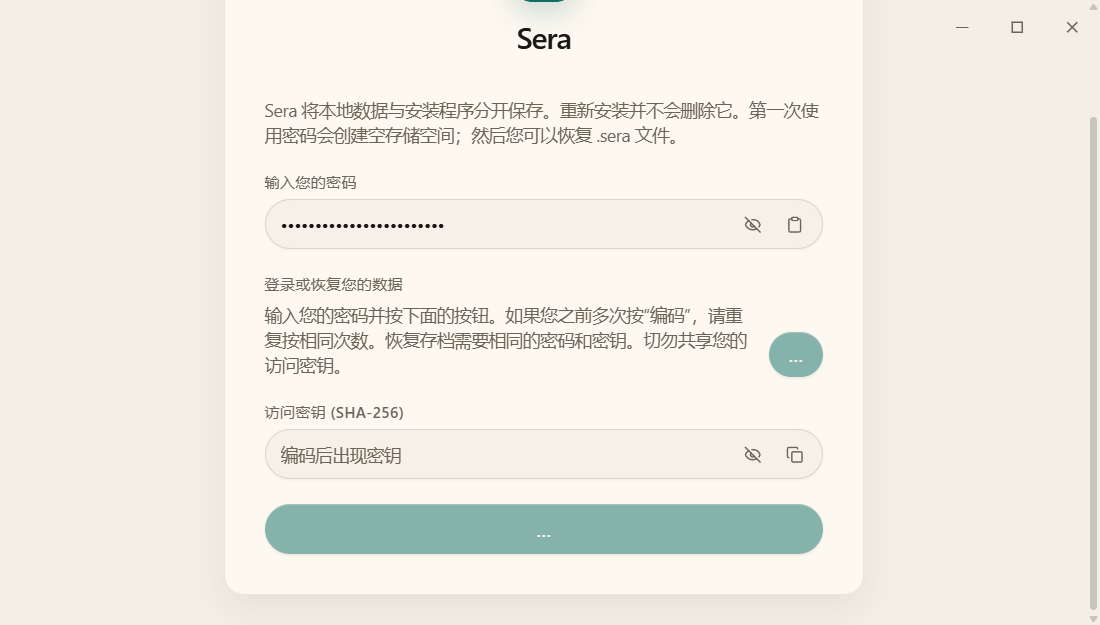
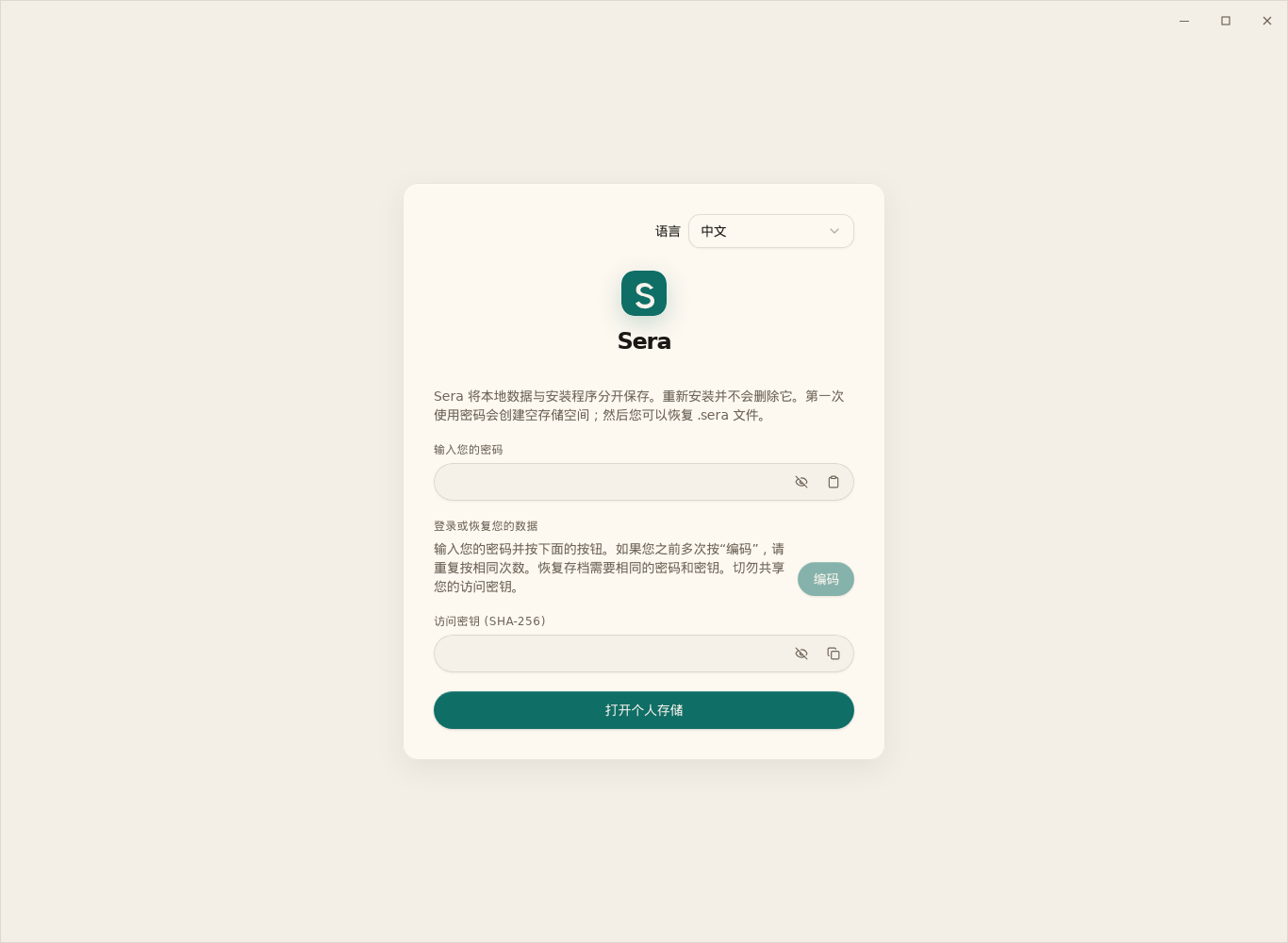
登录前选择语言
在登录页面顶部选择语言。全新安装默认使用英语。系统会记住选择,切换语言不会清除已经输入的密码短语。
02. First browser profile
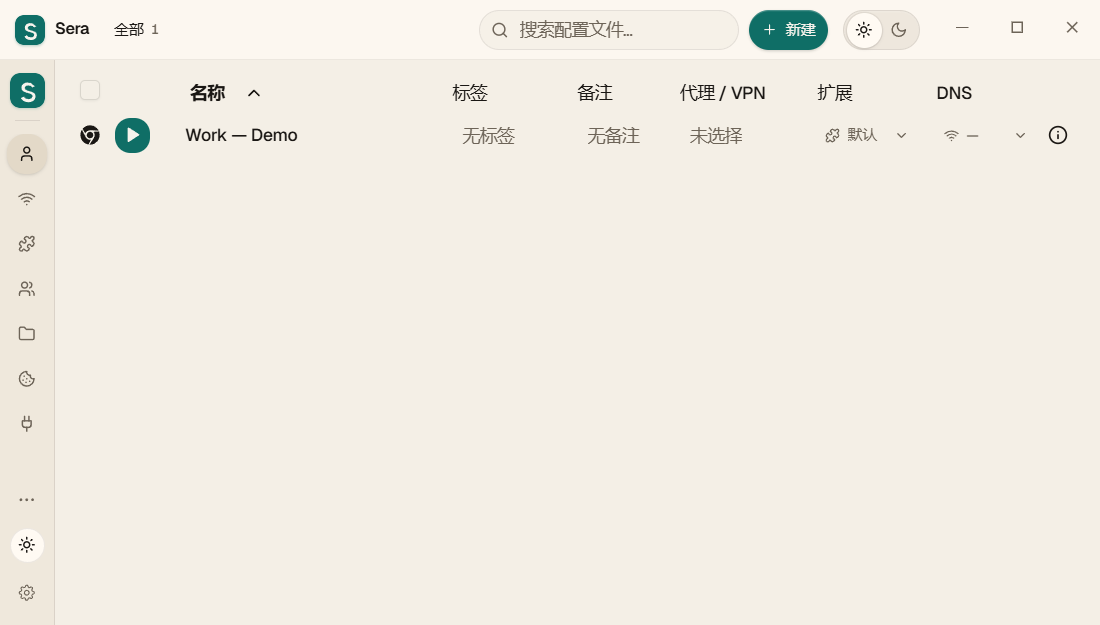
- Open Profiles and click New/plus button.
- Provide a meaningful name, such as "Job." Select an available browser. If it is not already on your PC, wait for it to download.
- If necessary, select a group, VPN/proxy, and extension group. You can start without them.
- Save your profile. Click the round start button to the left of his name.
- In the browser that opens, log in to the desired sites. Cookies and history belong to this profile.
To divide tasks, create another profile. Folders and groups help organize your list; They do not launch remote transfer by themselves.
03. Your own VPN subscription
- Purchase a subscription from your chosen VPN provider. Payment Sera does not automatically issue a VPN.
- Open the VPN section and select add/import subscription. Paste the link provided by your provider.
- Refresh the list of hosts, select the desired country and available server.
- Assign a VPN to the profile in its settings and launch the browser.
- Check the result of the external connection. The selected country and the running process do not yet prove that the traffic came out through the desired server.
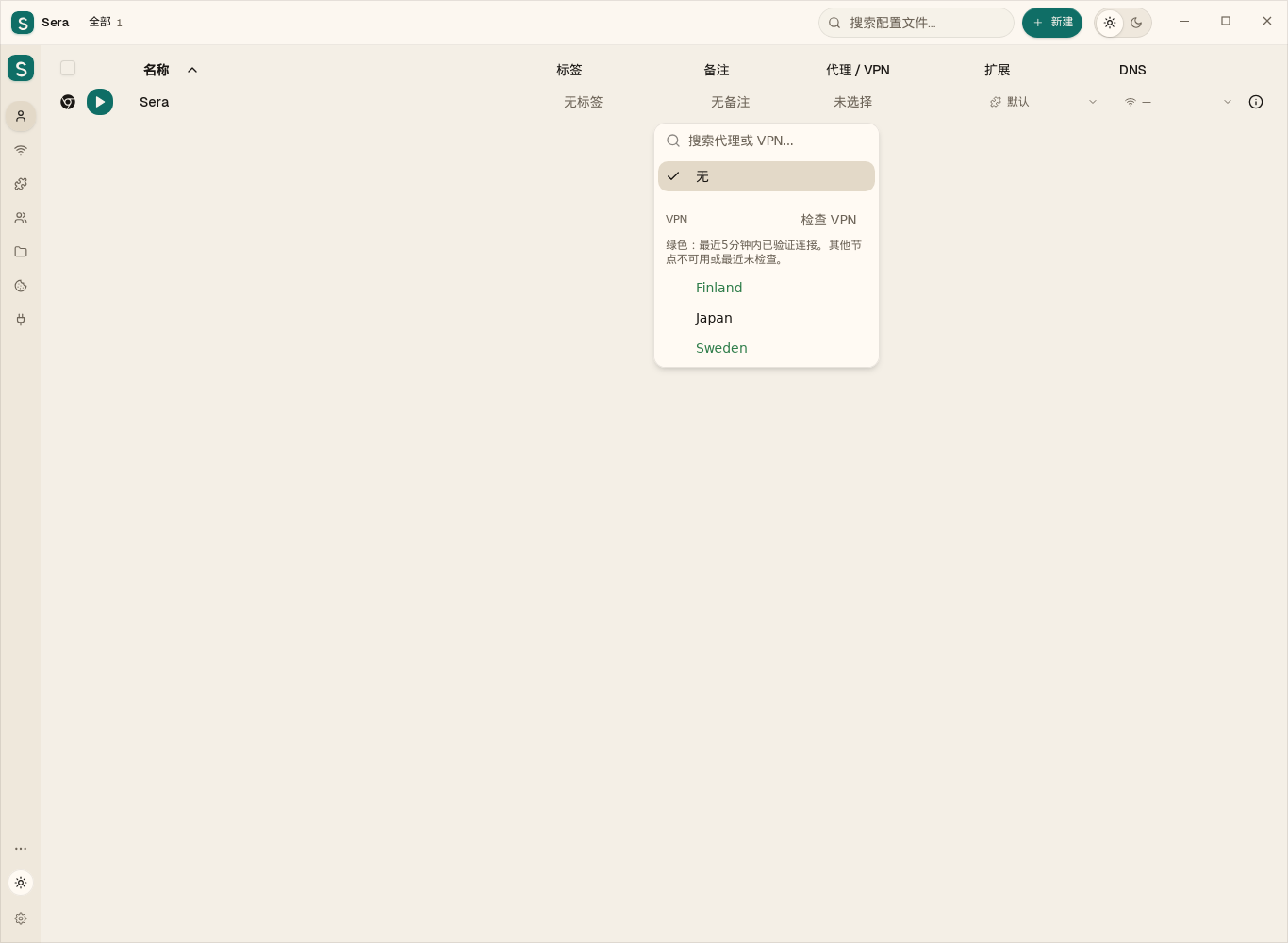
哪些 VPN 国家可用?
打开国家列表并点击“检查 VPN”。绿色名称表示最近5分钟内已成功验证连接的节点。其他名称保持普通颜色。勾选标记仍表示为此配置选择的节点。每次同时检查两个节点,关闭列表会停止剩余队列。
04. Browser extensions
- Open "Extensions". Add a supported extension archive or manifest.json folder.
- Create an extension group and include the extensions you need there.
- In your profile settings, select this group.
- Close and restart your profile. Check the list of extensions in the browser itself.
If the extension does not appear, check the composition of the archive, compatibility with Chromium and the selected group. The extension imported into the library must be assigned to a profile.
05. Downloading and launching your bots
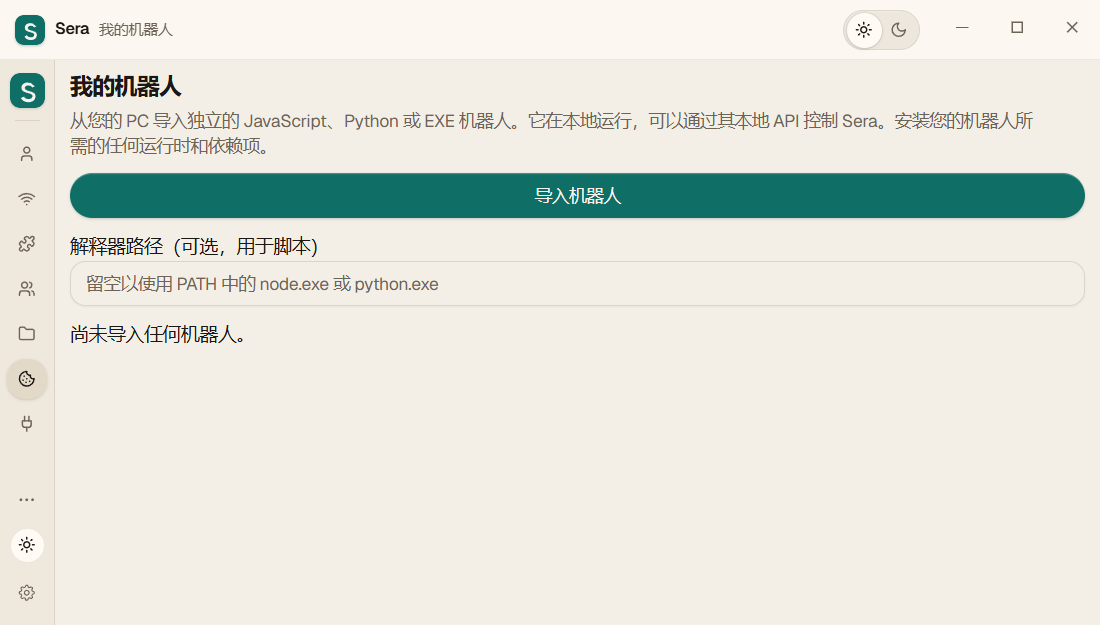
- Open "My Bots".
- Click "Upload Bot" and select one .js, .cjs, .py or .exe file up to 128 MB in size.
- For JS/CJS install Node.js, for PY - Python. If the program does not find the interpreter, enter the full path to node.exe or python.exe in the field above the list.
- Click "Run" and read the confirmation. The bot will start executing its script.
- To stop, click Stop. One imported bot is launched at a time.
The file is stored encrypted. Import itself does not launch it. The bot runs with your Windows rights, so download only programs that you understand.
Import does not convert any script into a Sera bot: it must contain program control logic. Dependencies, adjacent files, and DLLs are not automatically packaged. The bot's network requests are not automatically translated into the VPN profile.
06. Bot: your Google Cloud project
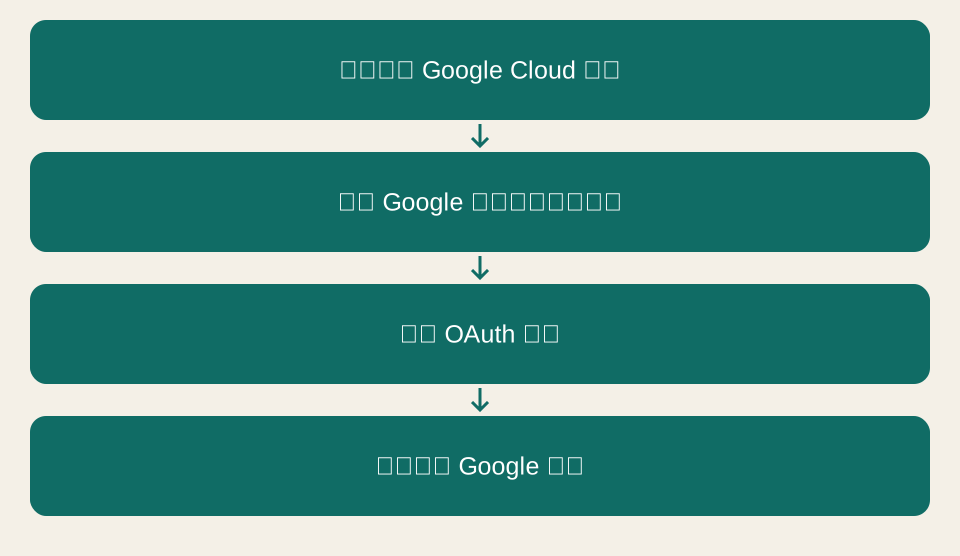
This bot is for those who want to use their own OAuth project. For regular login through an already configured application, it is not necessary to create your own project.
Preparation
- Install new Sera from this page and Node.js 18 or later.
- Download Sera-Google-Drive.cjs. In Sera, open "My Bots", upload the file and launch.
- A local wizard will open in your browser. The address starts with http://127.0.0.1 - this is your PC.
What the bot does automatically
- Click "Create a project and enable Drive API." The bot will download the official Google Cloud CLI with Python, about 103 MB, and check SHA-256 before launching.
- In the Google window that opens, sign in to your account and confirm access for the Google Cloud CLI.
- The bot will create a project with the specified ID or check access to an existing project and enable the Google Drive API. Save the project ID; when repeating, use the same one.
What needs to be confirmed on the Google side
- Follow the link in the wizard to open Branding. Enter the name Sera Drive and your contact email.
- Select External. Please read and agree to Google's terms and conditions.
- In Audience, add your account to Test users. For personal use, you can start with test mode.
- In Data Access, add permission if necessary
https://www.googleapis.com/auth/drive.file. - Open Clients → Create client. Type - Desktop app / Computer application.
- Click Download JSON and save the file.
project + Drive API→② You are on Google
OAuth + Desktop app→③ Bot
JSON to Sera
Connect settings to Sera
- If Google Drive is already connected in Sera, click “Disconnect” in its section.
- In the wizard, select the downloaded JSON and click Save JSON to Sera.
- The settings will be saved encrypted only in the current storage. The file is not sent to the site.
- Click "Sign in to Google Drive" and confirm access to your Drive.
- Go back to Sera → More → Upload and Download → Google Drive. To update the status, open the section again.
The master works for 45 minutes or until the bot stops. It doesn't automatically download your archives or delete your cloud project when stopped.
Google Cloud CLI retains native authorization in %LOCALAPPDATA%/SeraTools/google-cloud-585/sera-config.
This is a separate Google Cloud CLI connection.
Manage its access through your Google account settings.
Also save the downloaded JSON in a secure place.
07. Copy to Google Drive and second PC
Connect without a bot
In Sera, go to Upload & Download → Google Drive and click Sign In to Google. Select your account and confirm access.
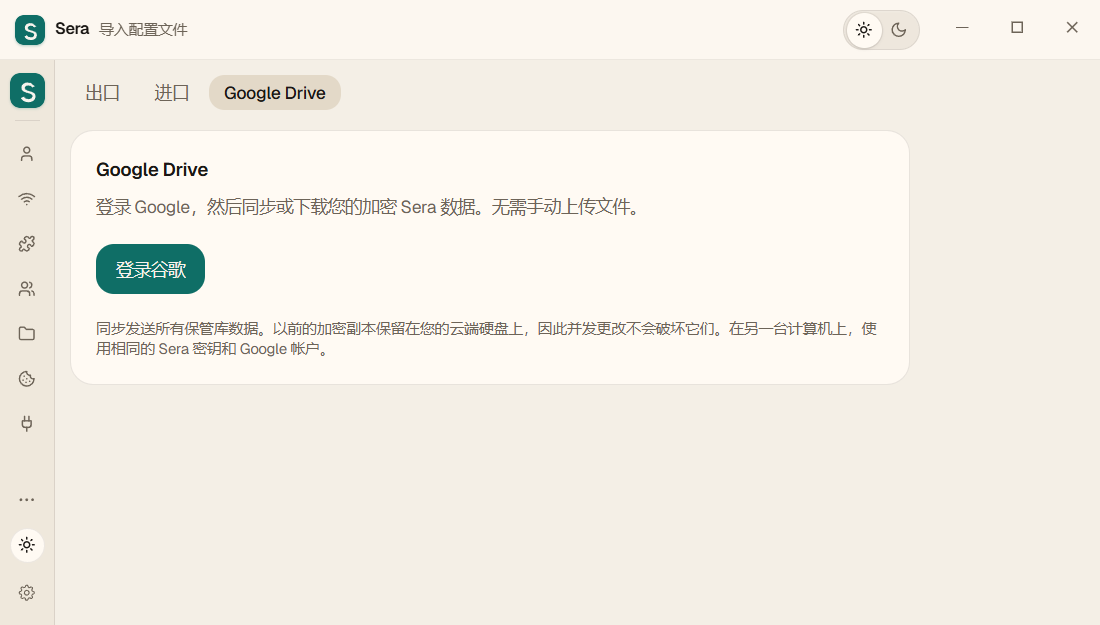
Saving
- Shut down browsers and bots to ensure the copy is consistent.
- Click Sync.
- Wait for the message that the encrypted data has been sent and the last transfer time to update.
This is sending a snapshot of the storage at your command. It does not automatically merge simultaneous changes from multiple PCs. Previous copies remain in your Google Drive.
Recovering on another computer
- Install Sera. Use the same Sera key with which the copy was created.
- If the first PC used its own Google Cloud project, first download the same JSON Desktop app through the bot. There is no need to create a new project. Then connect the same Google account.
- Click "Upload from Google Drive".
- Check the preview to see which files will be added or replaced.
- Confirm “Recover data” and wait for it to complete.
08. File transfer and backup
上传并在另一台电脑上继续
- 保存您的文档并关闭正在运行的浏览器和 Sera 机器人。
- 打开“更多”菜单和上传选项卡中的数据传输部分。
- 选择所有数据或所需类别。对于常规副本,请禁用上传后删除数据。
- 保存加密的 .sera 文件并将其传输到第二台 PC。将存档与程序的工作文件夹分开存储。
- 在第二台 PC 上安装 Sera。输入您创建存档时所用的相同密码和登录参数,然后打开数据下载。
两种启动模式
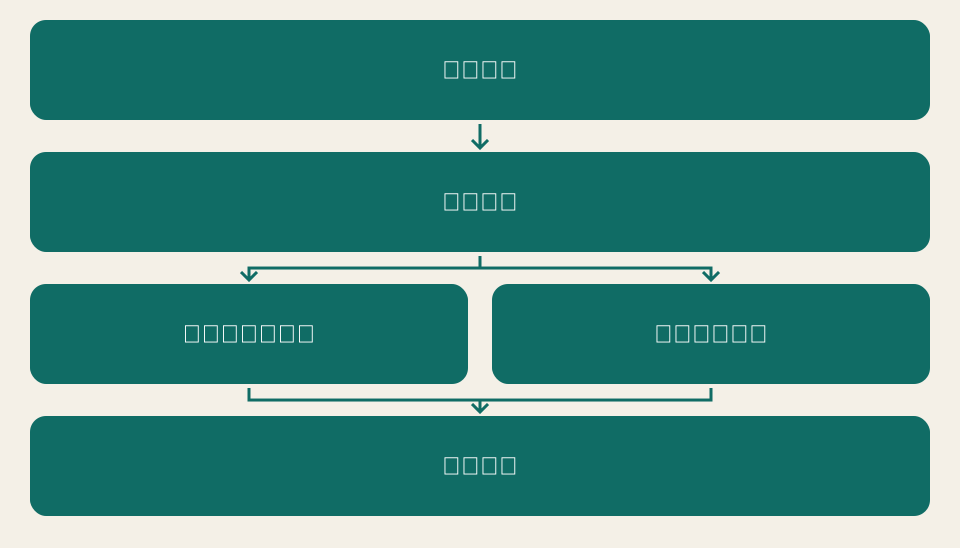
选择 .sera 文件,等待验证并读取预览:文件数量、总大小和替换列表。
- 没有备份,速度更快。 数据从存档中恢复。不保存具有先前状态的单独加密文件。适用于纯Sera和 PC 之间的传输。
- 有了备份,它的使用寿命会更长。 首先,Sera 将之前的状态保存到一个单独的加密文件中,然后恢复存档。之前的数据越多,这个阶段的时间就越长。
两种模式都用存档的内容替换工作数据:不在存档中的文件不会以新状态保存。这是所选副本的恢复,而不是两个存储的合并。如果替换失败,可以从临时文件夹中返回之前的状态。
阶段、音量和速度
确认后,Sera 显示当前阶段、处理量、文件数量和平均速度(以 MB/s 为单位)。在检查和最终更换期间,速度可能不会增加:这不一定是冻结。在出现结束消息之前不要关闭 Sera。
如果导入停止,请保存错误日志。诊断表明隐藏个人数据的阶段和相对路径。请勿删除您的保管库或发送密码、密钥或 VPN 链接。
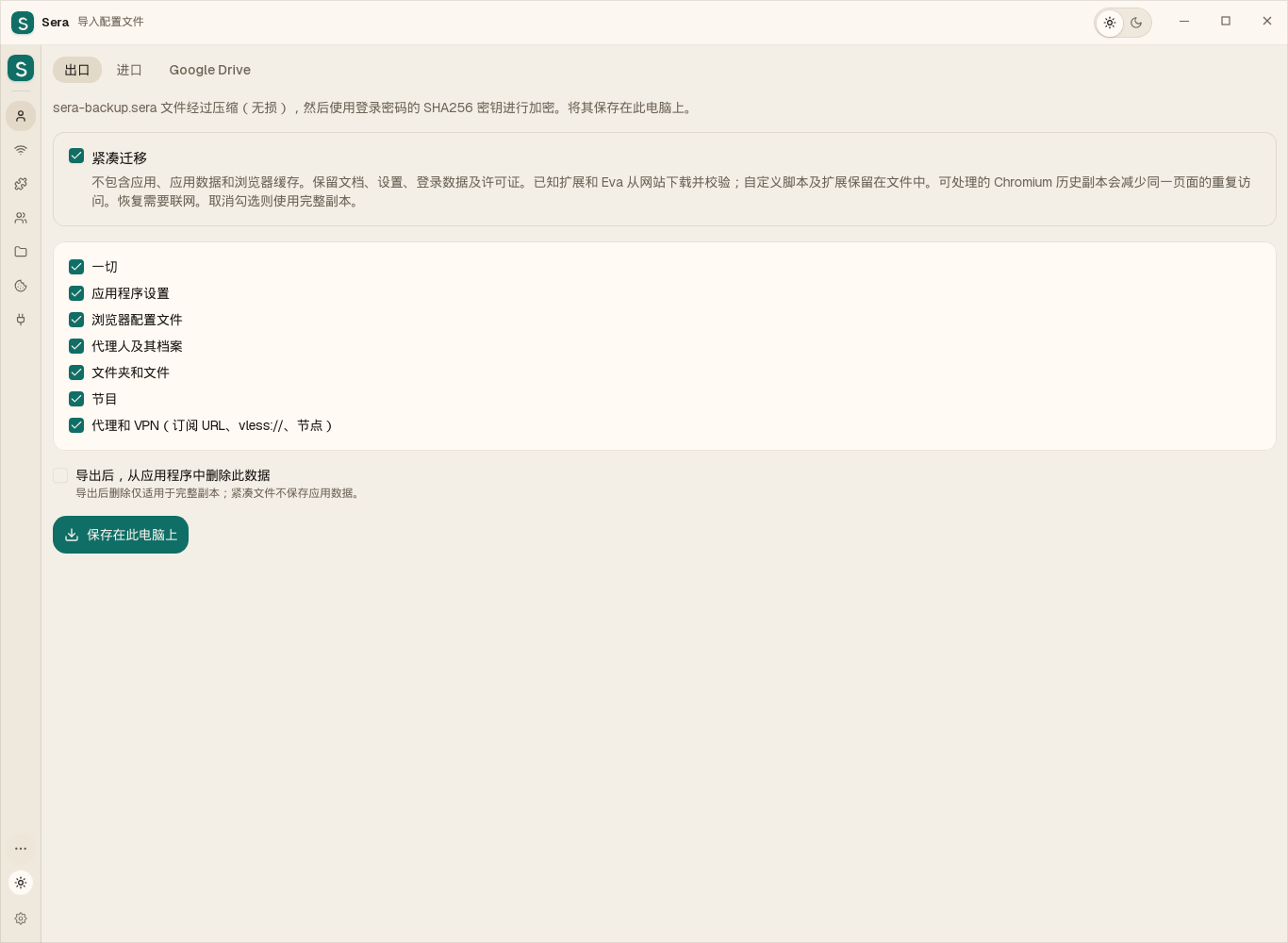
紧凑迁移
不包含应用、应用数据和浏览器缓存。保留文档、设置、登录数据及许可证。已知扩展和 Eva 从网站下载并校验;自定义脚本及扩展保留在文件中。可处理的 Chromium 历史副本会减少同一页面的重复访问。恢复需要联网。取消勾选则使用完整副本。
把工作迁移到另一台电脑
在导出和导入中保留“紧凑迁移”勾选,选择数据并保存 .sera 文件。在另一台电脑安装网站上的最新版 Sera,使用相同口令登录,然后导入该文件。
Word、Excel、PDF 和 TXT 以完整文件保存,包括文字、表格、格式和内嵌图片。在新电脑上单独安装所需应用,并在“程序”中选择新的可执行文件;名称和网络设置会保留。
Sera 会重新下载所需浏览器。商店中已知的扩展和 Eva 使用经过校验的版本;自定义扩展和脚本保留在归档中。网站可能要求重新登录,尤其是更换操作系统时。
只在可处理的 Chromium 历史副本中减少重复访问。原电脑的历史不变。浏览器会重新生成缓存。 以完整加密容器保存的受保护配置会原样保留,容器中的缓存可能仍在,以免丢失无法处理的数据。
恢复组件需要联网。下载和校验完成前不会替换当前存储。可切换 Sera 栏目,传输进度和选项会保留。
取消勾选“紧凑迁移”可使用完整副本。完整副本更大,通常耗时更长。只有完整副本支持导出后删除数据。
09. Local API and bot management
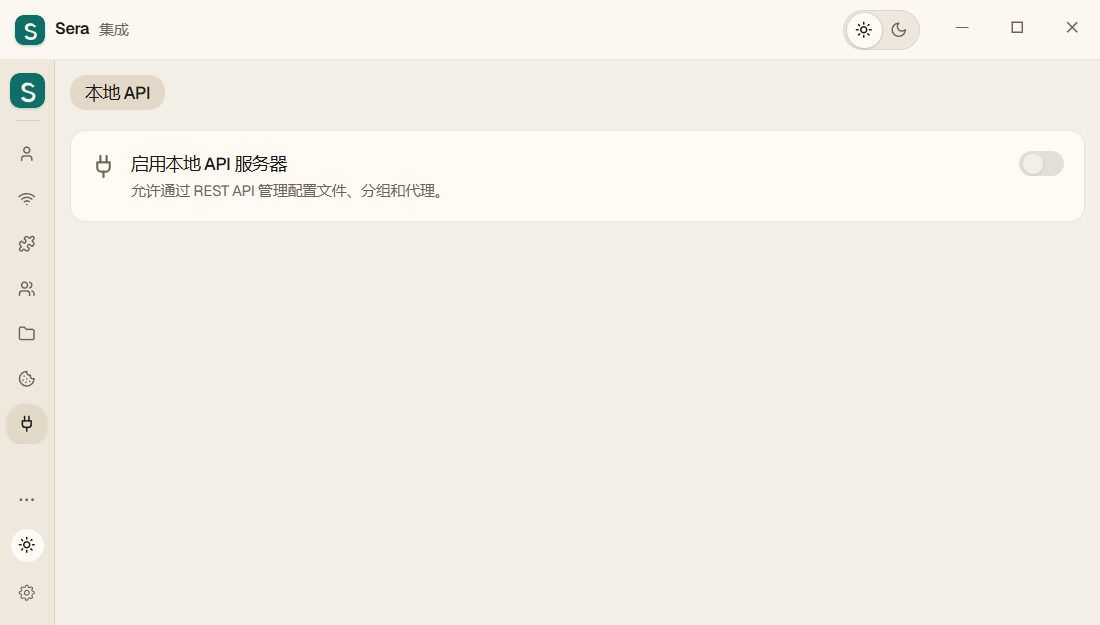
In updated Windows and Linux, in “Integrations” there is one page - “Local API”. It allows your bots and external tools to control what Sera can do on that computer.
- Open "Integrations → Local API".
- Enable the API and the required permissions. Don't give access to settings if your bot doesn't need it.
- Pass the local address and token to the trusted tool. The address 127.0.0.1 works on this PC.
- Check the bot's actions. When access is no longer needed, disable the API or change the token.
10. Changing the login key
- Before changing, save a backup copy and the old key.
- In the settings, open change login key and set a new secure phrase.
- Confirm saving and wait for successful completion.
- Keep the new key in a safe place. Old archives may require the same key with which they were created.
11. Sera 免费使用
月度和年度使用费用均为 $0。VPN、付费 AI 服务和扩展需另行购买。
在最新版 Sera 的使用权限页面选择 $0 的月度或年度方案,然后激活免费使用。激活需要联网。到期后可再次免费激活。如果只看到付款按钮,请更新应用。
支持完全自愿。使用 Sera 无需转账,转账也不代表购买订阅。
支持 Sera 开发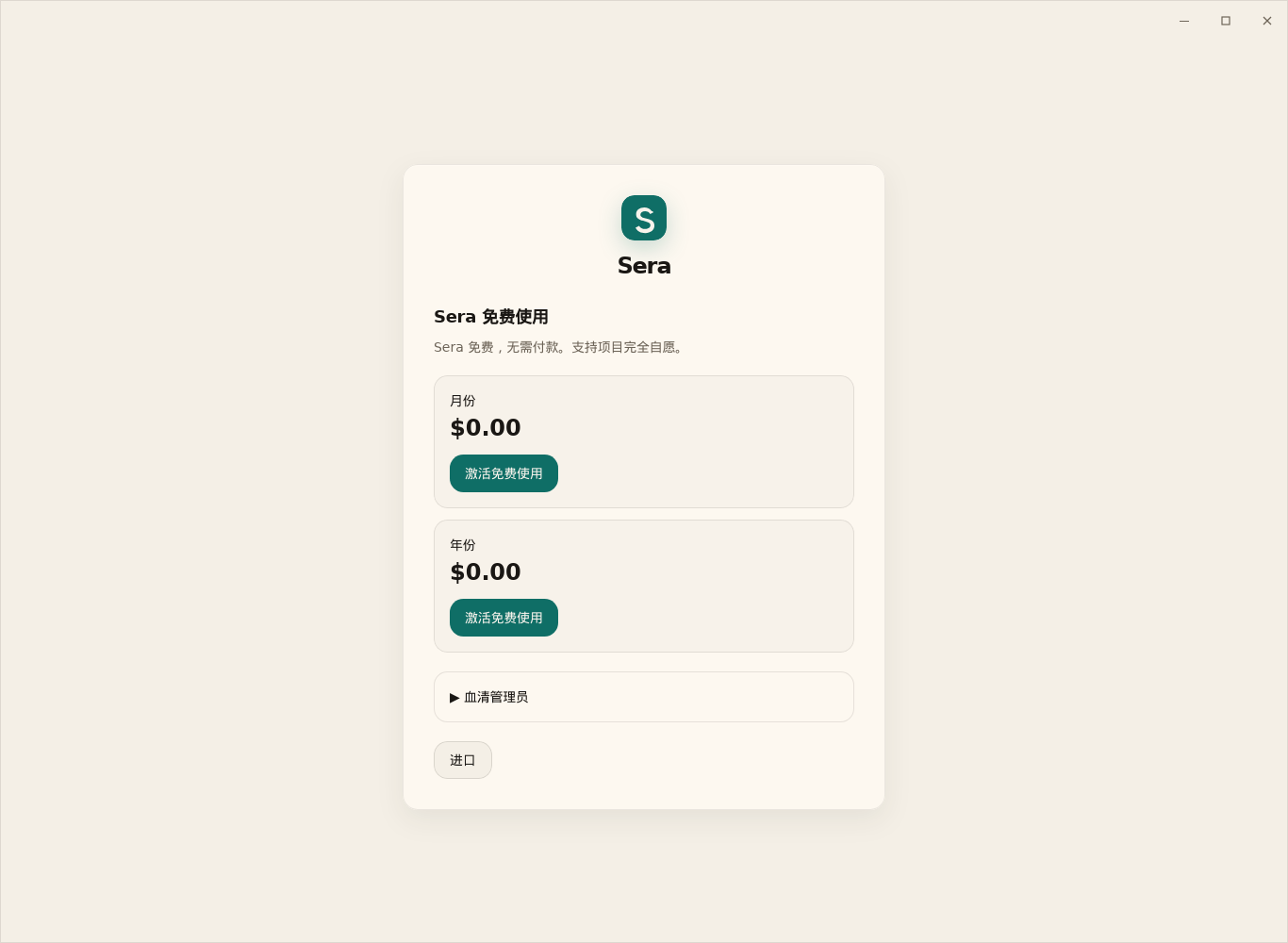
12. If something doesn't work
| Problem | What to check |
|---|---|
| After the update I see old profiles | This is your data on this PC. The update saves them. On the new PC the storage is empty. |
| JS/Python won't start | Is the interpreter installed? Please provide the full path. Do you have the required script dependencies? |
| Drive bot asks for update | Install the new Sera-setup.exe from this page, close the old Sera and start the new one. |
| No permission to settings | In “Integrations → Local API”, enable access to settings. Restart the bot. |
| Google rejected entry | Check the selected account and application status with the developer. For a test application, the account must be allowed. |
| Copy won't open | You need the correct key, a whole archive and the same Google account for Drive. The new key does not replace the old one. |
| VPN doesn't work | Check the subscription period, host and profile assignment. Try another node. |
| The extension did not appear | Assign an extension group to the profile and restart the browser. |
Save the error text without keys, passwords, tokens or VPN links. Indicate what action was performed and what assembly was installed.
13. Text files and protected scratch disk
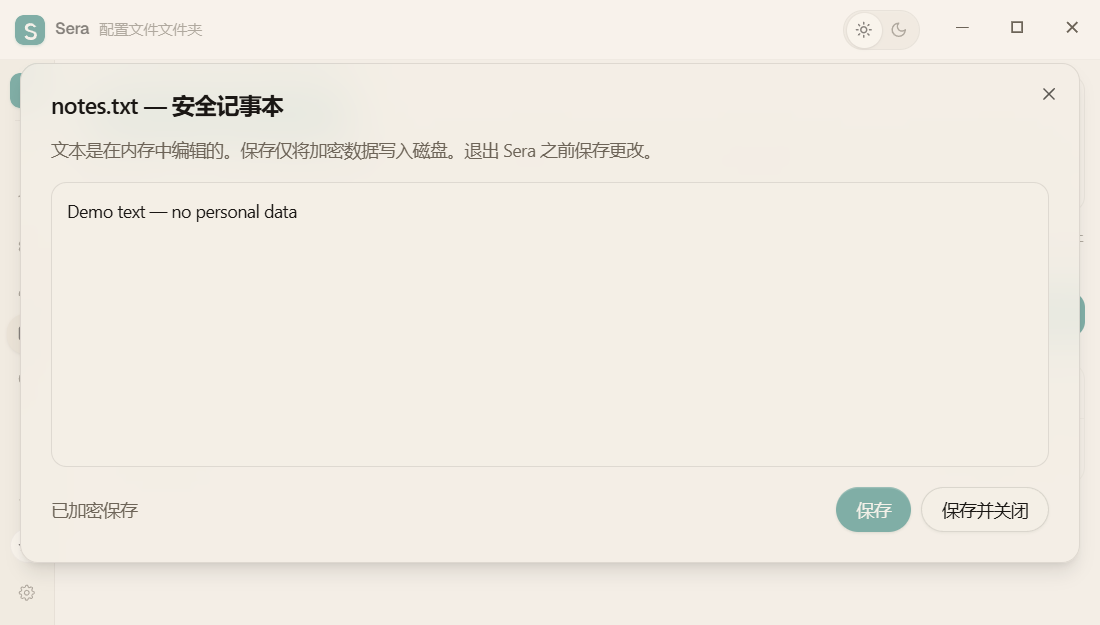
第一次,从PC中选择.txt文件并将其添加到Sera文件夹中。然后在 Sera 中单击其名称 - 内置记事本将打开。更改保存在加密的 Sera 存储中。 PC 上的原始文件仍然是单独的,不会自动删除。
TXT: built-in notepad
- Open the folders section and expand the folder you want.
- Click on the file with the .txt extension. It will open in a notepad inside Sera.
- Change the text and click “Save” or Ctrl+S. “Save and Close” finishes working with the document.
- If edits are not needed, select “Close without saving.”
The text is edited in memory and written encrypted to the storage. Sera does not create the usual temporary TXT on disk. UTF‑8 and sizes up to 4 MB are currently supported. If the encoding is not suitable, the source file remains unchanged.
How to delete one file
Click Recycle Bin on the specific file line and confirm deletion. Trash in the folder line deletes the folder, so check the name in the confirmation. A file opened in an editor must first be closed.
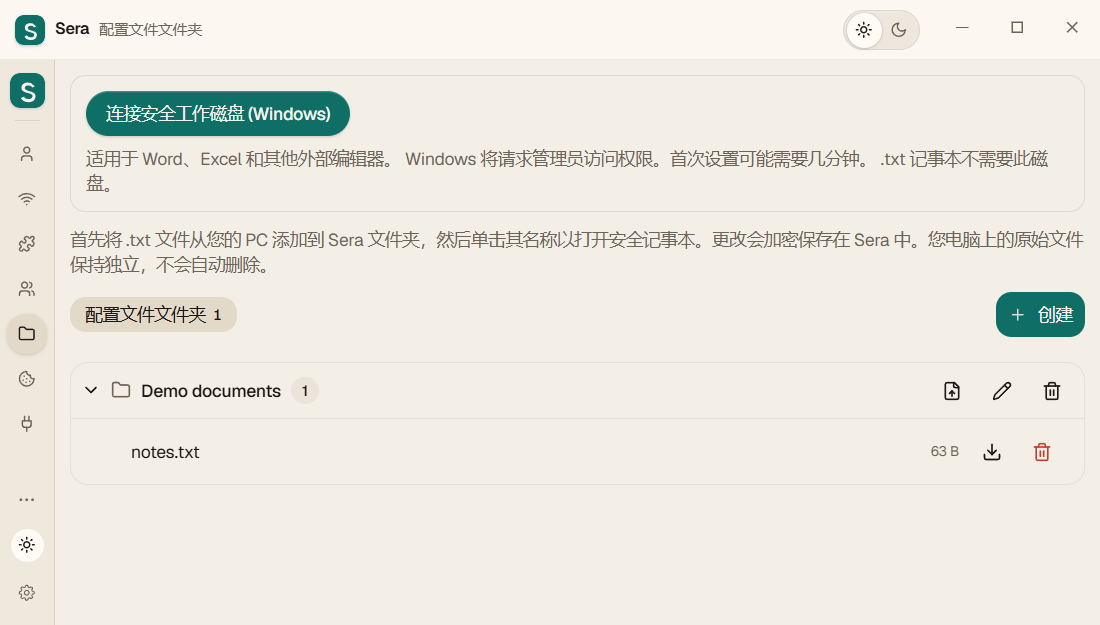
Word, Excel and other editors: Windows
- In the folders section, click "Mount Secure Scratch Disk (Windows)."
- Confirm the Windows prompt. Requires Windows Pro/Enterprise and BitLocker. The first setup may take a few minutes.
- After successful connection, open documents with an external editor.
- Save the document and close the editor. Close Sera as usual: changes are saved back to storage and the scratch disk is disconnected.
Linux and Mac
支持TXT编辑器及单文件删除。BitLocker工作磁盘仅适用于Windows。Linux/macOS外部编辑器可能留下未加密工作副本。 需要macOS 13.3或更新版本,Intel和Apple Silicon分别提供构建。DMG:将Sera.app拖入应用程序。ZIP:解压到新文件夹,Sera.portable启用独立数据。 Mac构建只有本地签名,没有Developer ID和Apple公证。尚未在新版macOS及Apple Silicon上完成全面运行测试。
Protection limits
External editors can save their own temporary files and autosaves outside the Sera drive. Sera does not control all Word, Excel, OS paging, and programs that already have access to an open session. For text, use the built-in notepad; this reduces the number of open copies.
关闭 Sera 之前
保存更改并关闭外部编辑器。像平常一样关闭 Sera 并等待数据保存并断开暂存盘的连接。录制时强行退出或关闭电脑可能会丢失最新的更改。
快速关机
在Sera窗口中,Windows/Linux按Ctrl + Shift + Q,Mac按Command + Shift + Q。程序会保存数据并正常退出。请先保存已打开文档的修改。
完成后,Sera 会关闭正在运行的浏览器配置文件,停止其 VPN 和代理,并断开安全暂存盘的连接。如果内置笔记本中有未保存的更改,请先保存它们并关闭笔记本。
最小化通知区域的窗口会使 Sera 和浏览器保持运行。要完成工作,请选择退出程序或使用键盘快捷键。
配置分组
按工作、项目或人员整理配置。创建分组本身不会上传数据;传输和备份需要单独配置。
程序与终端
扩展区域的程序标签可添加兼容应用或终端。终端执行您输入的命令;只有支持代理的命令才会使用其代理设置。
快捷键与退出
打开更多 → 键盘快捷键。Windows/Linux 用 Ctrl + Shift + Q 退出,Mac 用 Command + Shift + Q。请先保存文档。最小化窗口不等于退出。
关于 Sera
查看应用版本及相关信息。报告错误时附上版本,便于判断是否已有修复。
Eva
Eva 负责执行浏览器操作。您给自己的 AI 布置任务,AI 向 Sera 发送命令,Eva 在独立的后台 Brave 或 Chrome 中执行。Eva 不自带聊天界面或付费 AI 订阅。
Eva:看图了解该点哪里
请先按下方说明安装Node.js 22或更新版本,以及Brave或Chrome。图片使用演示保险库;请使用您自己的地址和令牌。图中编号与下方说明对应。
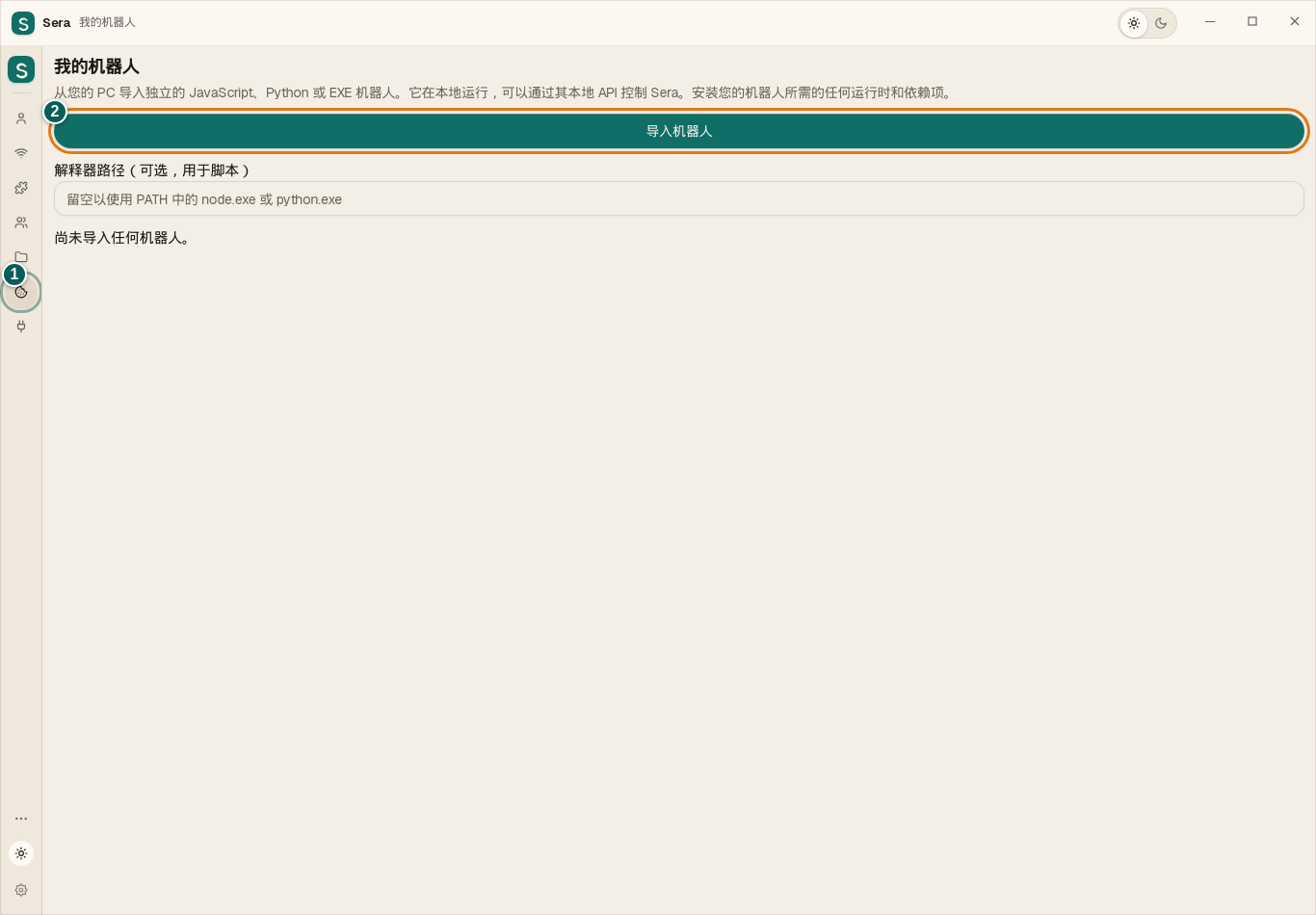
1. 导入Eva文件
① 打开左侧的我的机器人。② 点击导入按钮,选择电脑下载文件夹中的Eva-Sera.cjs(或Ева-Sera.cjs)。无需解压,也不要双击运行此文件。
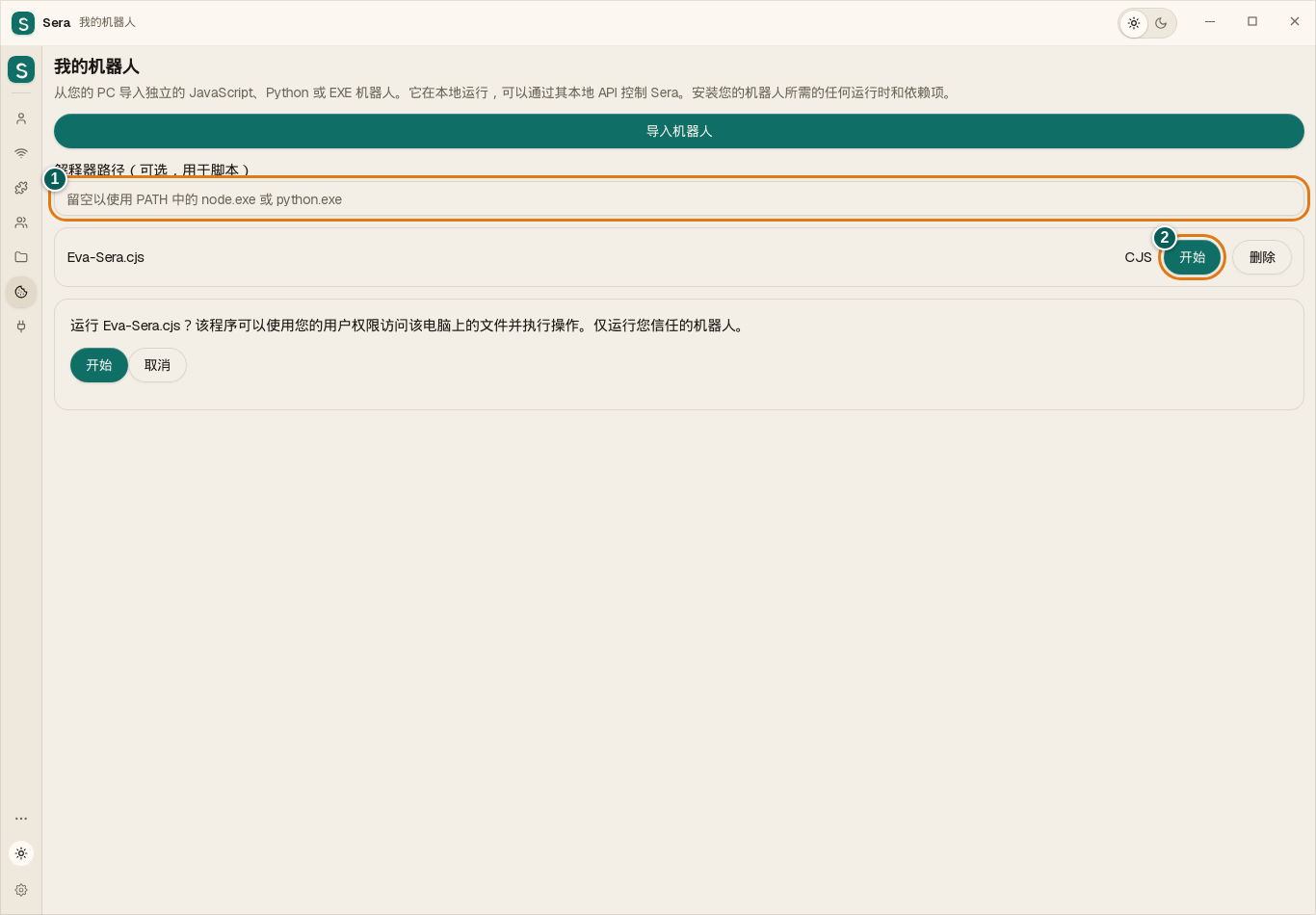
2. 启动Eva
① 通常将解释器路径留空。② 点击Eva-Sera.cjs旁的启动,再点击下方确认区域中的启动。成功后会出现运行状态和停止按钮。
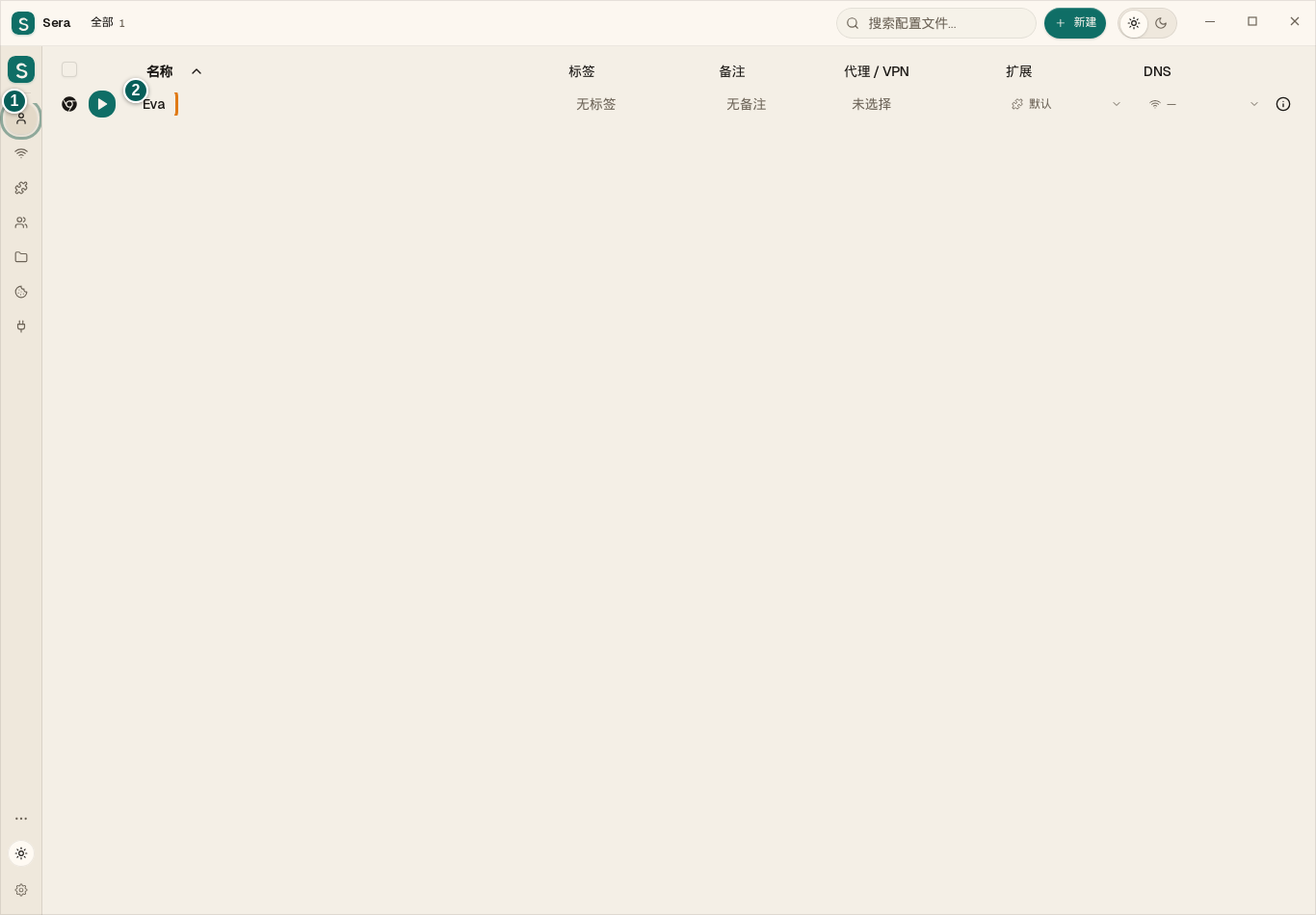
3. 准备Eva的配置文件
① 打开配置文件。如果还没有专用配置,点击右上角的新建并命名为Eva。② 它将出现在列表中。Eva使用时不要手动启动该配置;您的AI会通过Eva打开浏览器。
4. 连接您的AI
打开集成 → 本地API。① 启用服务器。② 用输入框旁的按钮复制令牌,并记下显示的服务器地址。③ 允许配置文件、浏览器启动及代理权限。将地址和令牌填入您信任的本地AI连接工具的设置中。无需提供保险库密码。
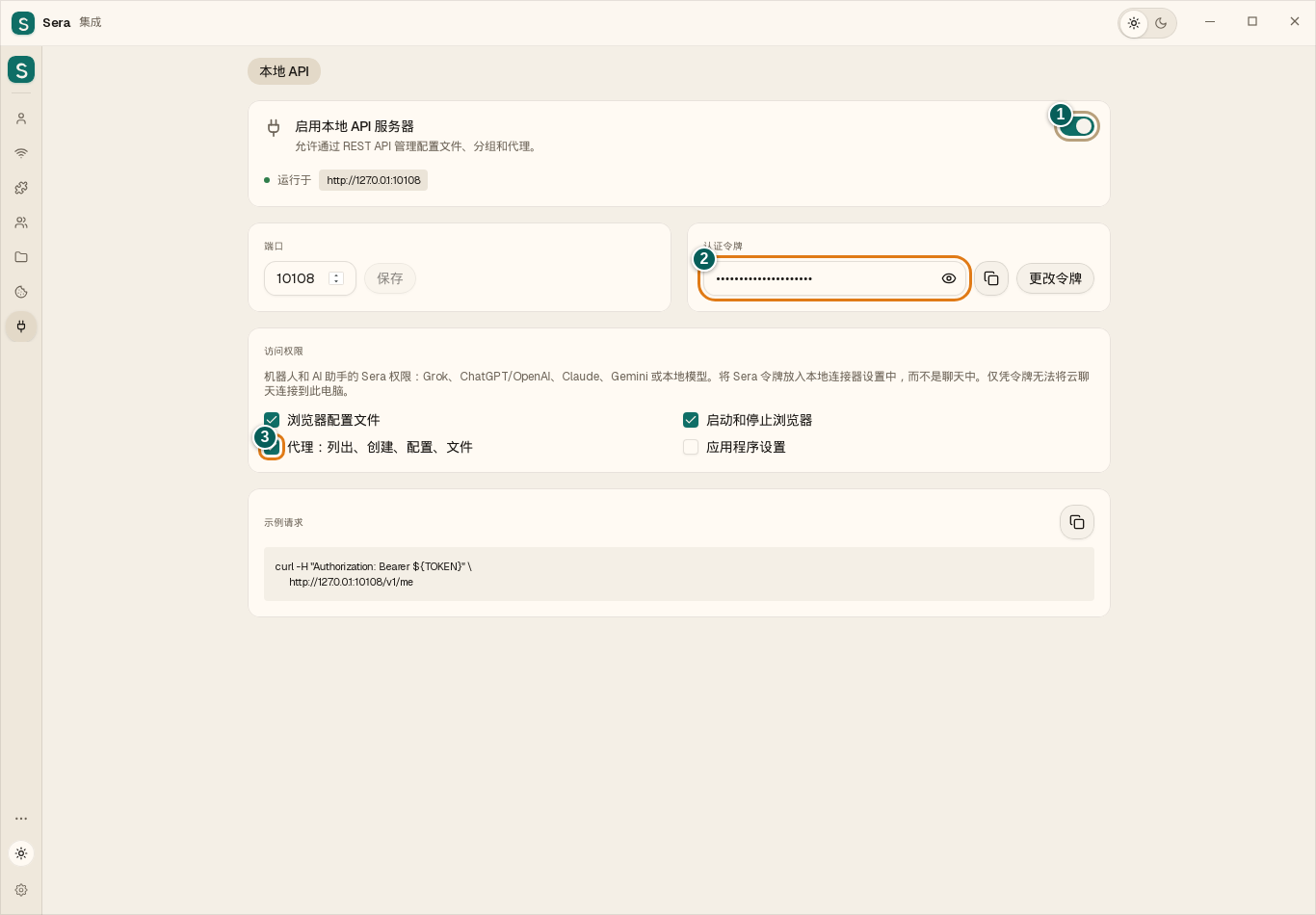
提出第一个任务
AI必须能够访问本机的API。仅将令牌发送给云端聊天不会把它连接到Sera。连接后可要求:“使用Eva配置文件,通过Eva打开我指定的网站,阅读页面并展示结果。不要提交任何内容或购买。”请保持Sera和Eva运行。要停止,请返回我的机器人并点击停止。
Eva 能做什么
- 打开页面和标签、访问链接、读取可见文字。
- 点击按钮、填写字段、滚动和截屏。
- 列出配置和标签;启动并关闭由自己打开的浏览器。
如何使用 Eva
- 完成下方安装,在“我的机器人”中启动 Eva。建立如“Eva”这样的独立配置,自动化期间不要手动打开它。
- 在集成 → 本地 API 中启用服务器,允许配置、浏览器启动和机器人权限。复制实际显示的地址与令牌。
- 连接能访问这台电脑并发送 API 请求的 AI 工具。仅把令牌发给普通云端聊天不会赋予访问能力;localhost 指的是您的电脑。
- 给 AI 任务并明确配置名称。先要求说明操作,再提供结果。需要停止时,在“我的机器人”中的 Eva 上点击停止。
给已连接 AI 的任务示例
只使用 Eva 配置。打开我指定的网站,找到配送条款并给出带链接的简短总结。不要购买或提交任何内容。
在 Eva 配置打开指定页面,把我的文字输入字段并显示截图。不要点击提交。
使用须知
这是普通 Brave/Chrome,没有 Wayfern 的指纹修改。Eva 的数据在所选配置内单独存放,不接管手动打开的浏览器。它不绕过验证码、网站限制或登录确认。付款、发消息和删除数据请分别授权。在配置中选择 VPN,并另行确认服务器可用。只把令牌交给可信的 AI。
逐步设置Eva
这些程序需要在电脑上单独安装一次,与Sera分开。如果已有Node.js 22或更新版本以及Brave或Chrome,请直接跳到启动Eva。
1. 安装Node.js
- 点击下载Node.js,在官方网站选择22或更新版本的LTS版。
- Windows用户请选择Windows、电脑架构(通常为x64)和Windows Installer (.msi),保存到下载文件夹。
- 打开.msi,保持默认设置(包括Add to PATH),依次点击Next → Install → Finish。Eva不需要可选的原生模块编译工具。
Mac请选择Apple Silicon (ARM64)或Intel (x64)对应的.pkg安装程序。Linux请在Node.js官网选择自己的系统并按官方说明安装。Windows的.msi不适用于Mac或Linux。
下载Node.js2. 安装一个浏览器
Brave或Google Chrome任选一个即可。已经安装就不必重复安装。使用下方按钮下载适合系统的版本,打开安装程序并完成安装。使用Eva不要求设为默认浏览器或登录账号。
3. 添加并启动Eva
- 完全退出Sera后重新打开,让它识别新安装的Node.js。
- 点击下方按钮下载Eva。在Sera中打开“我的机器人”→“上传机器人”,选择Eva-Sera.cjs(或Ева-Sera.cjs)。不要解压或双击运行文件。
- 标准安装时将解释器路径留空,点击“启动”。AI使用Sera本地API的地址和令牌,无需单独的Eva令牌。只向可信赖的AI提供令牌。
如果Eva无法启动
如果找不到Node.js,请重启电脑。自定义安装时,在“我的机器人”的解释器字段填写node.exe路径;Windows通常为C:\Program Files\nodejs\node.exe。如果找不到浏览器,请安装Brave或Chrome并重启Sera。其他错误请保存Eva日志中的消息。
Eva使用现有Sera本地API和令牌,需要Node.js 22以上及已安装的Brave或Chrome。使用独立后台浏览器,不使用Wayfern指纹。
用简单的话解释设置
点击齿轮,只修改需要的选项,然后保存设置。部分选项因操作系统而异。
外观 / 语言
选择浅色、深色、系统主题或自定义颜色。界面语言只改变 Sera,不翻译网站。
默认浏览器
通过 Sera 打开其他应用的链接并选择配置。普通使用不必启用。
系统权限
摄像头和麦克风用于通话及相关网站。系统授权不等于自动允许每个网站使用。
集成
启用 API 允许外部控制。使用界面显示的地址;端口是本地连接编号。令牌授予所选权限,更换后需重新配置客户端。
DNS 拦截列表
DNS 列表限制指定域名。如所需网站无法打开,检查允许和阻止列表。
同步加密
修改当前存储密钥时不要中断保存。旧备份仍用旧密钥,之后请重新导出。
禁用应用自动更新
关闭自动更新影响 Sera,不影响浏览器版本管理。Linux 可能通过包管理器更新。
在内存中保留已解密的配置文件
在内存中保留受保护配置的解密副本,可加快再次启动。会占用 RAM,不能防止他人访问正在运行的系统。
清除所有版本缓存
刷新浏览器版本信息缓存,不删除浏览历史或个人存储。
复制日志
复制最近日志或打开日志文件夹以排查问题。分享前检查个人信息。
指纹不匹配时阻止启动
检查配置的语言和时区是否与网络出口一致。如启动受阻,请检查设置及服务器。
VPN 扩展警告
提醒您注意可能改变连接路线的扩展。VPN 扩展和 Sera 的连接可能相互影响。
清除所有流量历史
清除记录的网络流量统计。不删除浏览器配置,也不清除网站保存的历史。
单个浏览器配置的设置
每个配置可设置名称、浏览器及版本、分组、扩展和网络连接。窗口尺寸决定是否适合屏幕。语言、时区和指纹参数影响网站识别浏览器的方式,不是 Sera 界面语言。没有特定需要时保留默认值,并明确选择所需 VPN。