 Sera
SeraFind your way around
First browser profile
A profile is a separate browser with its own sign-ins, history and settings. Work and personal email can stay open together. Create a profile, give it a name and start it.
Open sectionProfile groups
Organize profiles by work, project or person. Creating a group does not itself upload data to the cloud; configure transfers and backups separately.
Open sectionYour own VPN subscription
Network stores your connections. A VPN subscription supplies a provider’s server list; a proxy is a specific connection address. Assign the connection to a profile. Paying for Sera does not buy VPN service.
Open sectionBrowser extensions
Extensions add translation, ad blocking and other browser tools. Import a CRX file and assign it to a profile. An extension group is a reusable set for several profiles.
Open sectionText files and protected scratch disk
Profile folders hold files you add. Click a TXT file to use the built-in notepad; Word and Excel use external programs. The original file on your computer remains separate and is not automatically deleted.
Open sectionPrograms and terminal
The extensions area includes a Programs tab for applications compatible with your OS and a terminal. The terminal runs commands you enter. Only proxy-aware commands use its proxy settings.
Open sectionDownloading and launching your bots
Run your own JS/CJS scripts, Python scripts, EXE programs and Eva here. Upload a file, install its runtime and check its status and log. Programs must support your operating system.
Open sectionEva
Eva carries out browser actions. You give your AI a task, the AI sends commands to Sera, and Eva performs them in a separate background Brave or Chrome. Eva has no chat of its own or bundled paid AI subscription.
Open sectionBot: your Google Cloud project
This helper is only for creating your own Google Cloud project for Drive. It is separate from Eva. You confirm Google sign-in, verification codes and permissions yourself.
Open sectionCopy to Google Drive and second PC
Google Drive holds an encrypted copy in your own account. Connect Google, save a copy and restore it on another computer. To include later changes, save a new copy.
Open sectionFile transfer and backup
Export creates an encrypted Sera archive; import restores it. Import with a backup takes longer but saves the state before import. Fast import does not make that extra backup.
Open sectionLocal API and bot management
The Local API lets external AI tools and programs send commands to Sera. Enable it, select permissions and use the displayed address and token. Manual browsing does not require it.
Open sectionChanging the login key
Change the key protecting your current data here. Keep the new key. Previously exported archives still require their old key until you export a new copy.
Open sectionSettings in plain language
Open the gear icon, change only what you need, and select Save settings. Some options depend on your operating system.
Open sectionKeyboard shortcuts and exit
Open More → Keyboard shortcuts. Exit with Ctrl + Shift + Q on Windows/Linux or Command + Shift + Q on Mac. Save documents first. Minimizing the window does not quit Sera.
Open sectionSera is free
Monthly and yearly access cost $0. VPN, paid AI services and extensions are separate. In the updated Sera, open access settings, choose a month or year for $0 and select Activate free access. Internet is required for activation. Activate again for free when the period ends. If you only see payment buttons, update the app.
Open sectionIf something doesn't work
Start with the exact error and log instead of deleting data. Include the Sera version and the action that failed. Check logs for personal information before sharing them.
Open sectionAbout Sera
Find the application version and information here. Include the version in an error report to help identify whether a fix is already available.
Open sectionInstallation and first launch
Your first launch creates your own storage. A new computer starts without accounts or VPN. Install Sera, keep your login key, then create a profile or restore your archive.
Open section01. Installation and first launch
Separate empty Sera
- Download Sera-clean-Windows.zip.
- Completely unpack the archive into a new empty folder, for example “Sera-clean”.
- Run Sera.exe from this folder. Do not move old data or cache folders there.
- Create a new personal vault. There are no profiles, VPN or connected Google.
This copy keeps the data close to itself thanks to the Sera.portable file. Save the entire folder: it will contain your data. Don't re-extract on top of your working copy if you want more empty space.
Typical installation
- Download Sera-setup.exe. This is a Windows x64 build.
- If Sera is already open, close it and its browsers. Launch the installer and select an installation location.
- Open Sera. On your new computer, create a personal vault: set a secure phrase or key and save it separately.
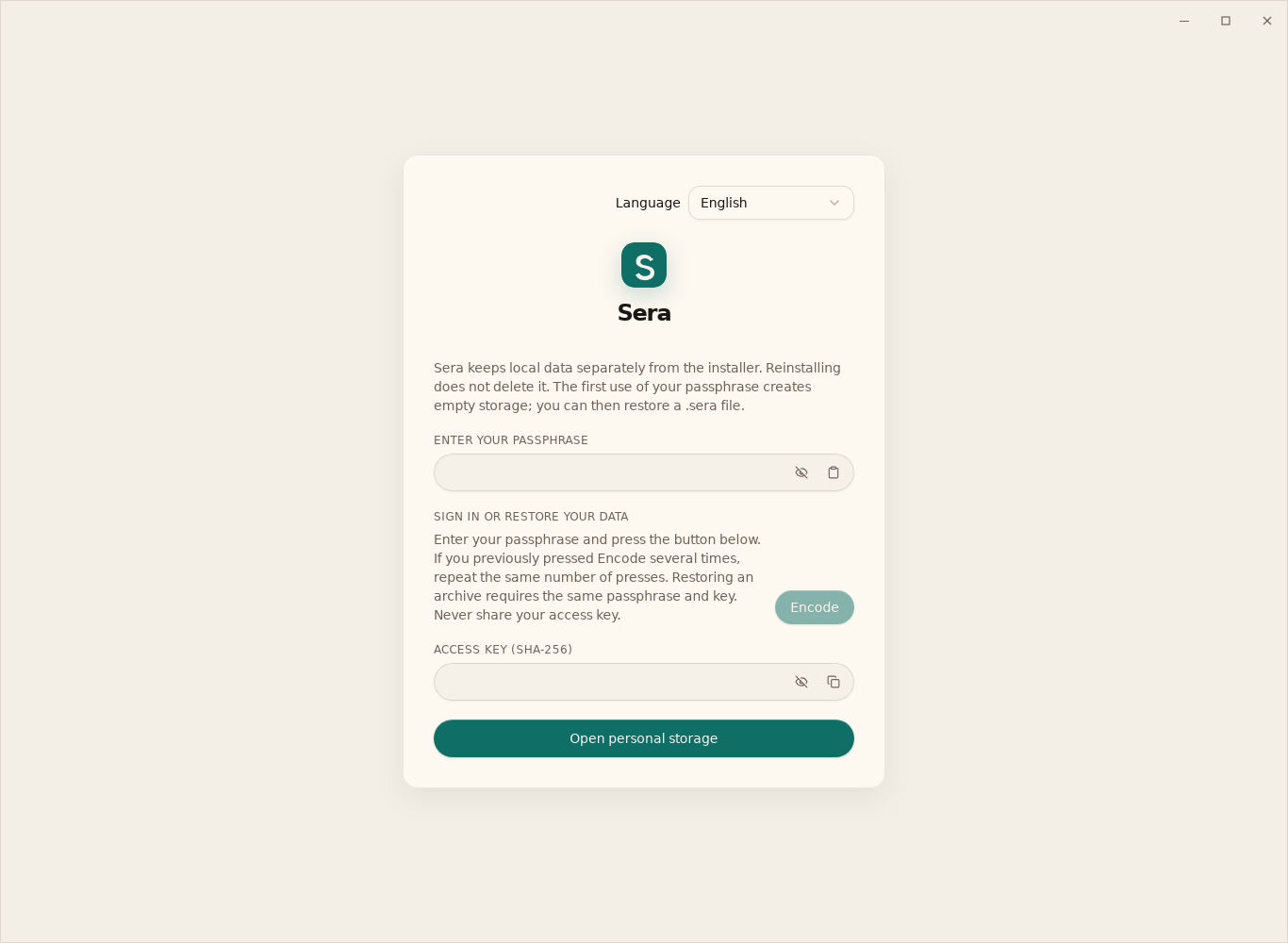
- Complete the initial setup. In the new storage, the list of profiles is empty.
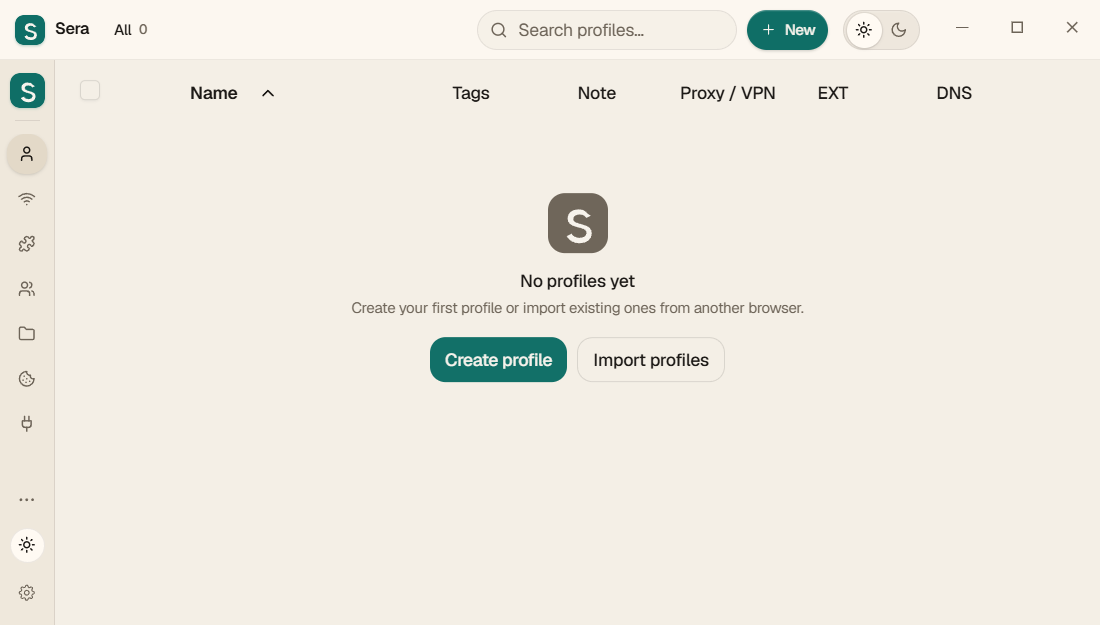
Language before sign-in
Choose your language at the top of the sign-in screen. A fresh installation starts in English. Your choice is remembered, and changing the language does not clear a passphrase you have already entered.
02. First browser profile
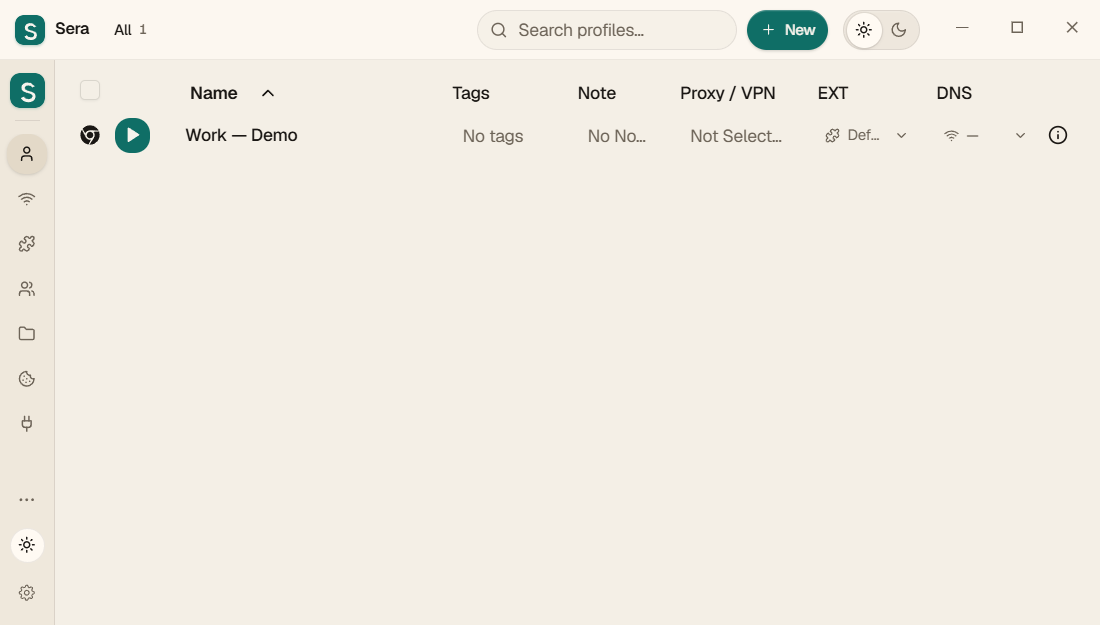
- Open Profiles and click New/plus button.
- Provide a meaningful name, such as "Job." Select an available browser. If it is not already on your PC, wait for it to download.
- If necessary, select a group, VPN/proxy, and extension group. You can start without them.
- Save your profile. Click the round start button to the left of his name.
- In the browser that opens, log in to the desired sites. Cookies and history belong to this profile.
To divide tasks, create another profile. Folders and groups help organize your list; They do not launch remote transfer by themselves.
03. Your own VPN subscription
- Purchase a subscription from your chosen VPN provider. Payment Sera does not automatically issue a VPN.
- Open the VPN section and select add/import subscription. Paste the link provided by your provider.
- Refresh the list of hosts, select the desired country and available server.
- Assign a VPN to the profile in its settings and launch the browser.
- Check the result of the external connection. The selected country and the running process do not yet prove that the traffic came out through the desired server.
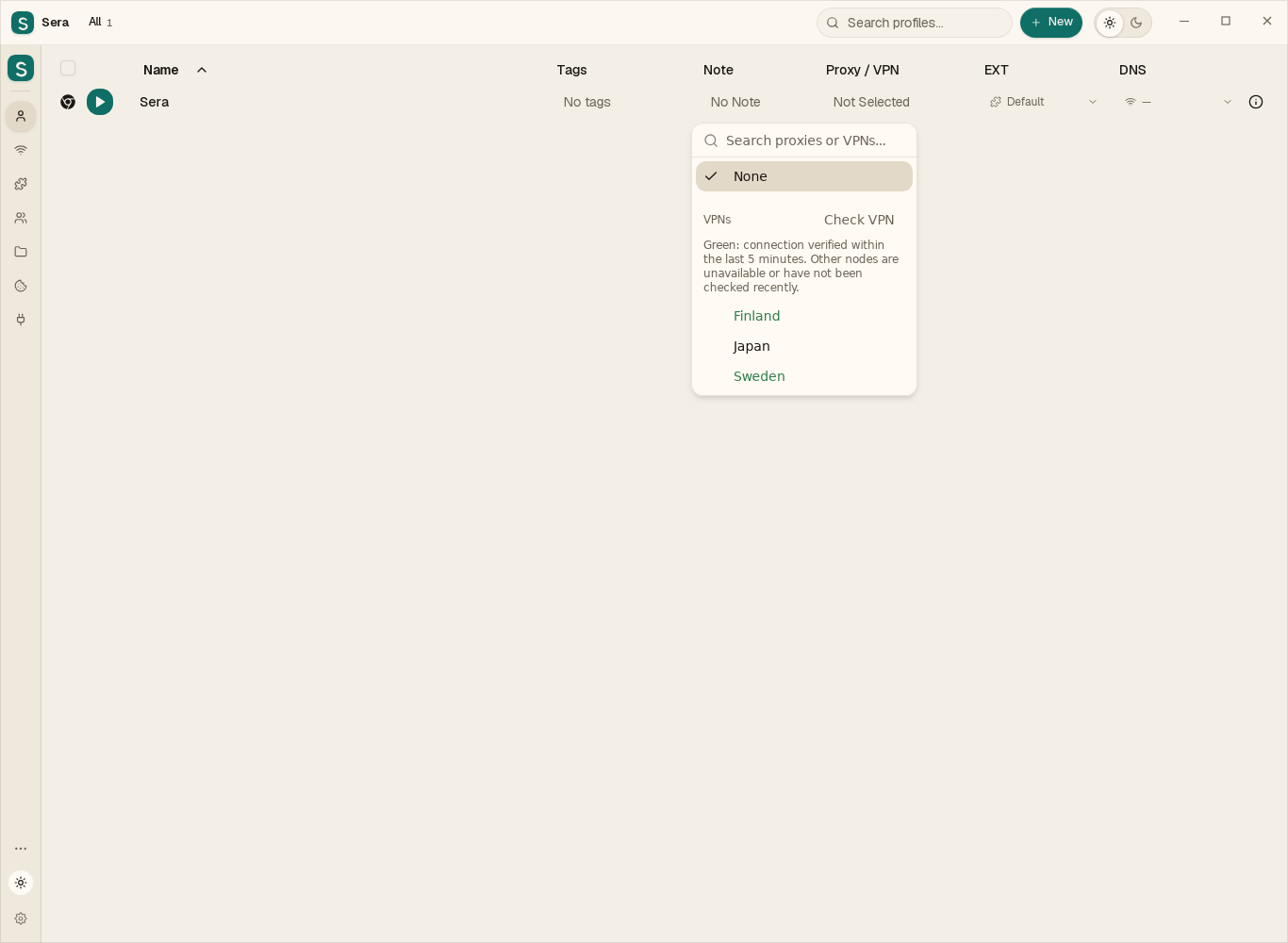
Which VPN countries are working?
Open the country list and click “Check VPN”. Green names identify nodes with a successful connection check within the last 5 minutes. Other names keep their normal color. The check mark still means the node selected for this profile. Checks run two at a time; closing the list stops the remaining queue.
04. Browser extensions
- Open "Extensions". Add a supported extension archive or manifest.json folder.
- Create an extension group and include the necessary extensions there.
- In your profile settings, select this group.
- Close and restart your profile. Check the list of extensions in the browser itself.
If the extension does not appear, check the composition of the archive, compatibility with Chromium and the selected group. The extension imported into the library must be assigned to a profile.
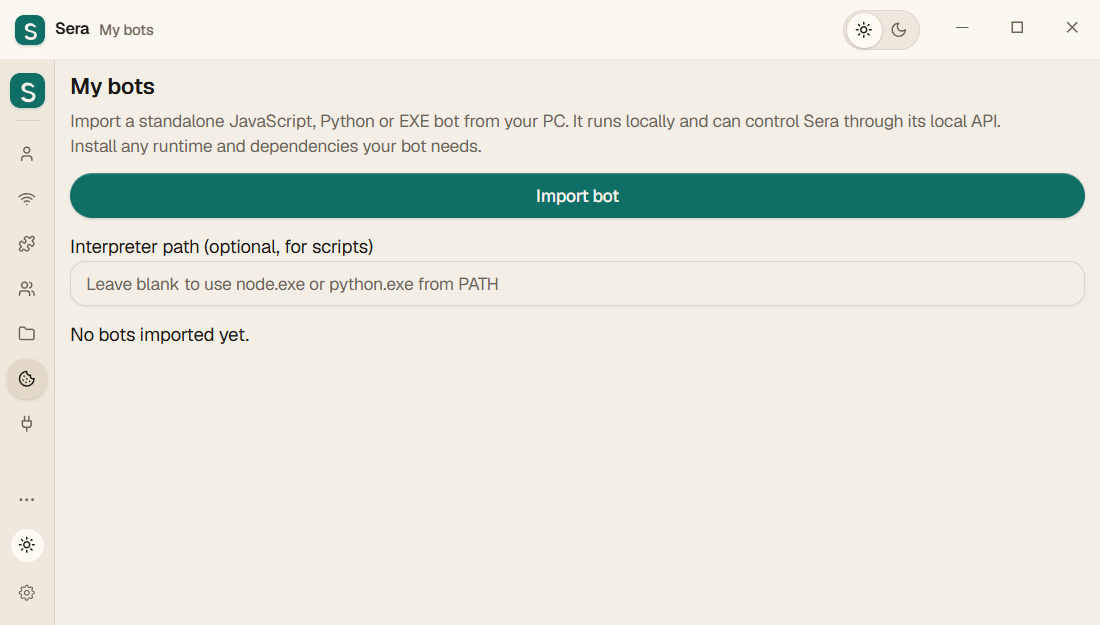
05. Downloading and launching your bots
- Open "My Bots".
- Click "Upload Bot" and select one .js, .cjs, .py or .exe file up to 128 MB in size.
- For JS/CJS install Node.js, for PY - Python. If the program does not find the interpreter, enter the full path to node.exe or python.exe in the field above the list.
- Click "Run" and read the confirmation. The bot will start executing its script.
- To stop, click Stop. One imported bot is launched at a time.
The file is stored encrypted. Import itself does not launch it. The bot runs with your Windows rights, so download only programs that you understand.
Import does not convert any script into a Sera bot: it must contain program control logic. Dependencies, adjacent files, and DLLs are not automatically packaged. The bot's network requests are not automatically translated into the VPN profile.
06. Bot: your Google Cloud project
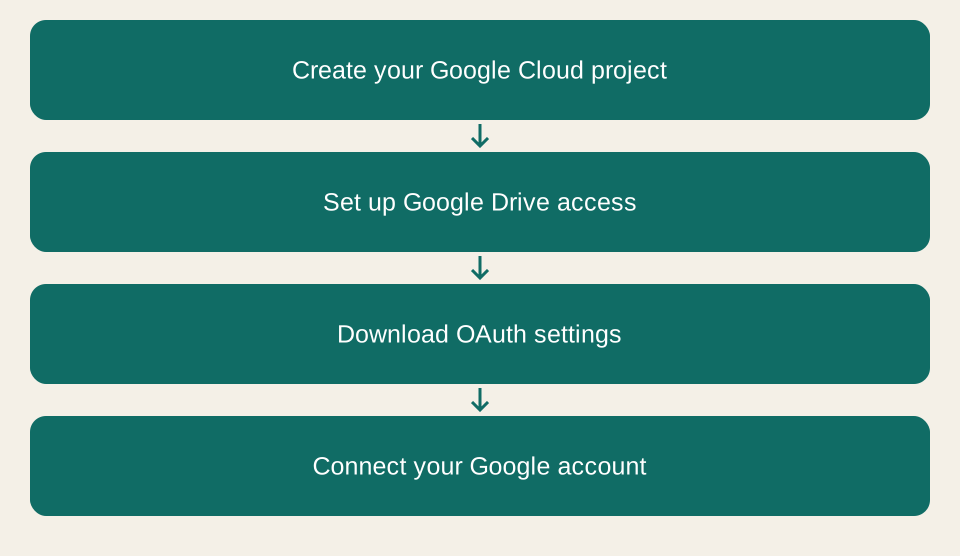
This bot is for those who want to use their own OAuth project. For regular login through an already configured application, it is not necessary to create your own project.
Preparation
- Install new Sera from this page and Node.js 18 or later.
- Download Sera-Google-Drive.cjs. In Sera, open "My Bots", upload the file and launch.
- A local wizard will open in your browser. The address starts with http://127.0.0.1 - this is your PC.
What the bot does automatically
- Click "Create a project and enable Drive API." The bot will download the official Google Cloud CLI with Python, about 103 MB, and check SHA-256 before launching.
- In the Google window that opens, sign in to your account and confirm access for the Google Cloud CLI.
- The bot will create a project with the specified ID or check access to an existing project and enable the Google Drive API. Save the project ID; when repeating, use the same one.
What needs to be confirmed on the Google side
- Follow the link in the wizard to open Branding. Enter the name Sera Drive and your contact email.
- Select External. Please read and agree to Google's terms and conditions.
- In Audience, add your account to Test users. For personal use, you can start with test mode.
- In Data Access, add permission if necessary
https://www.googleapis.com/auth/drive.file. - Open Clients → Create client. Type - Desktop app / Computer application.
- Click Download JSON and save the file.
project + Drive API→② You are on Google
OAuth + Desktop app→③ Bot
JSON to Sera
Connect settings to Sera
- If Google Drive is already connected in Sera, click “Disconnect” in its section.
- In the wizard, select the downloaded JSON and click Save JSON to Sera.
- The settings will be saved encrypted only in the current storage. The file is not sent to the site.
- Click "Sign in to Google Drive" and confirm access to your Drive.
- Go back to Sera → More → Upload and Download → Google Drive. To update the status, open the section again.
The master works for 45 minutes or until the bot stops. It doesn't automatically download your archives or delete your cloud project when stopped.
Google Cloud CLI retains native authorization in %LOCALAPPDATA%/SeraTools/google-cloud-585/sera-config.
This is a separate Google Cloud CLI connection.
Manage its access through your Google account settings.
Also save the downloaded JSON in a secure place.
07. Copy to Google Drive and second PC
Connect without a bot
In Sera, go to Upload & Download → Google Drive and click Sign In to Google. Select your account and confirm access.
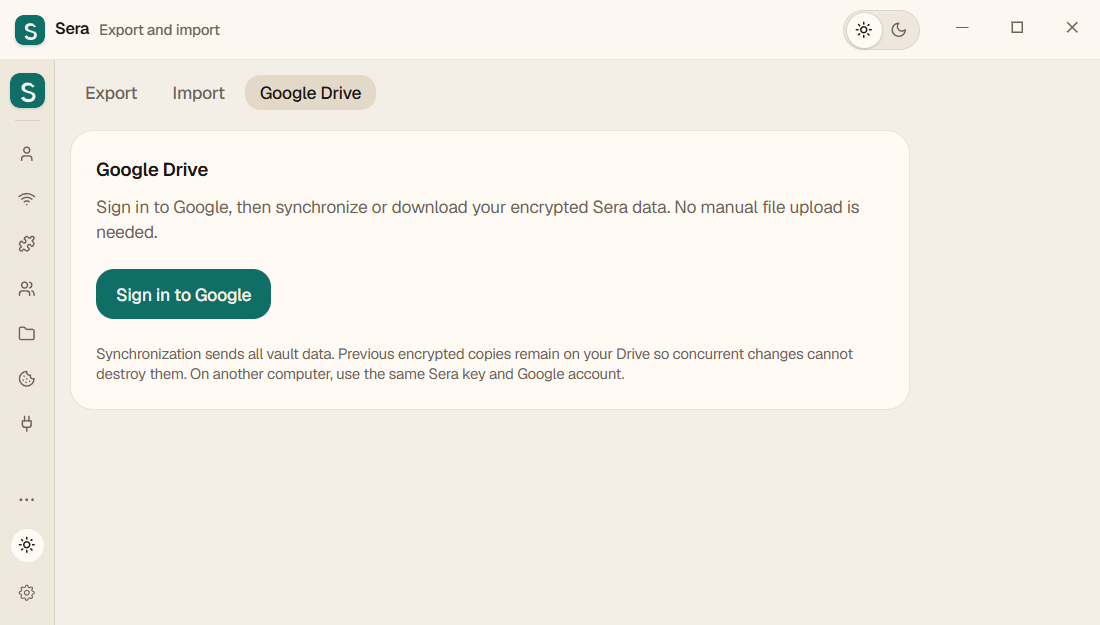
Saving
- Shut down browsers and bots to ensure the copy is consistent.
- Click Sync.
- Wait for the message that the encrypted data has been sent and the last transfer time to update.
This is sending a snapshot of the storage at your command. It does not automatically merge simultaneous changes from multiple PCs. Previous copies remain in your Google Drive.
Recovering on another computer
- Install Sera. Use the same Sera key with which the copy was created.
- If the first PC used its own Google Cloud project, first download the same JSON Desktop app through the bot. There is no need to create a new project. Then connect the same Google account.
- Click "Upload from Google Drive".
- Check the preview to see which files will be added or replaced.
- Confirm “Recover data” and wait for it to complete.
08. File transfer and backup
Upload and continue on another PC
- Save your documents and close running browsers and Sera bots.
- Open the data transfer section in the “More” menu and the upload tab.
- Select all data or desired categories. For a regular copy, leave data deletion after upload disabled.
- Save the encrypted .sera file and transfer it to the second PC. Store the archive separately from the program's working folder.
- On the second PC, install Sera. Enter the same passphrase and login parameters that you created the archive with, then open the data download.
Two boot modes
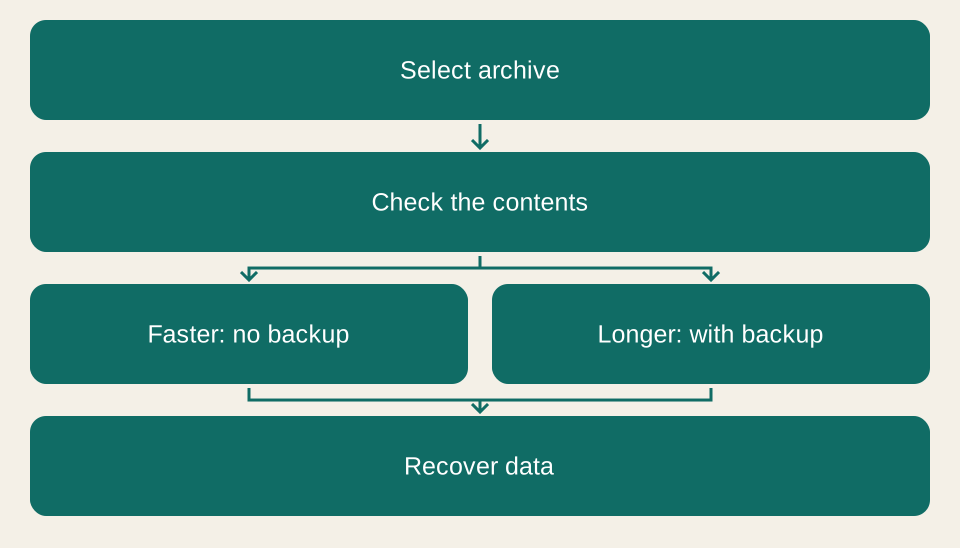
Select the .sera file, wait for verification and read the preview: number of files, total size and list of replacements.
- Without a backup, it's faster. Data is restored from the archive. A separate encrypted file with its previous state is not saved. Suitable for pure Sera and transfer between PCs.
- With a backup it lasts longer. First, Sera saves the previous state into a separate encrypted file, then restores the archive. The more previous data, the longer this stage.
Both modes replace the working data with the contents of the archive: files that are not in the archive are not saved in a new state. This is a restoration of the selected copy, not a merger of two storages. If the replacement fails, the previous state can be returned from the temporary folder.
Stages, volume and speed
After confirmation, Sera shows the current stage, processed volume, number of files and average speed in MB/s. During the check and final replacement, the speed may not increase: this is not necessarily a freeze. Do not close Sera until the end message appears.
If the import is stopped, save the error log. The diagnosis indicates the stage and relative path with hiding personal data. Do not delete your vault or send passwords, keys, or VPN links.
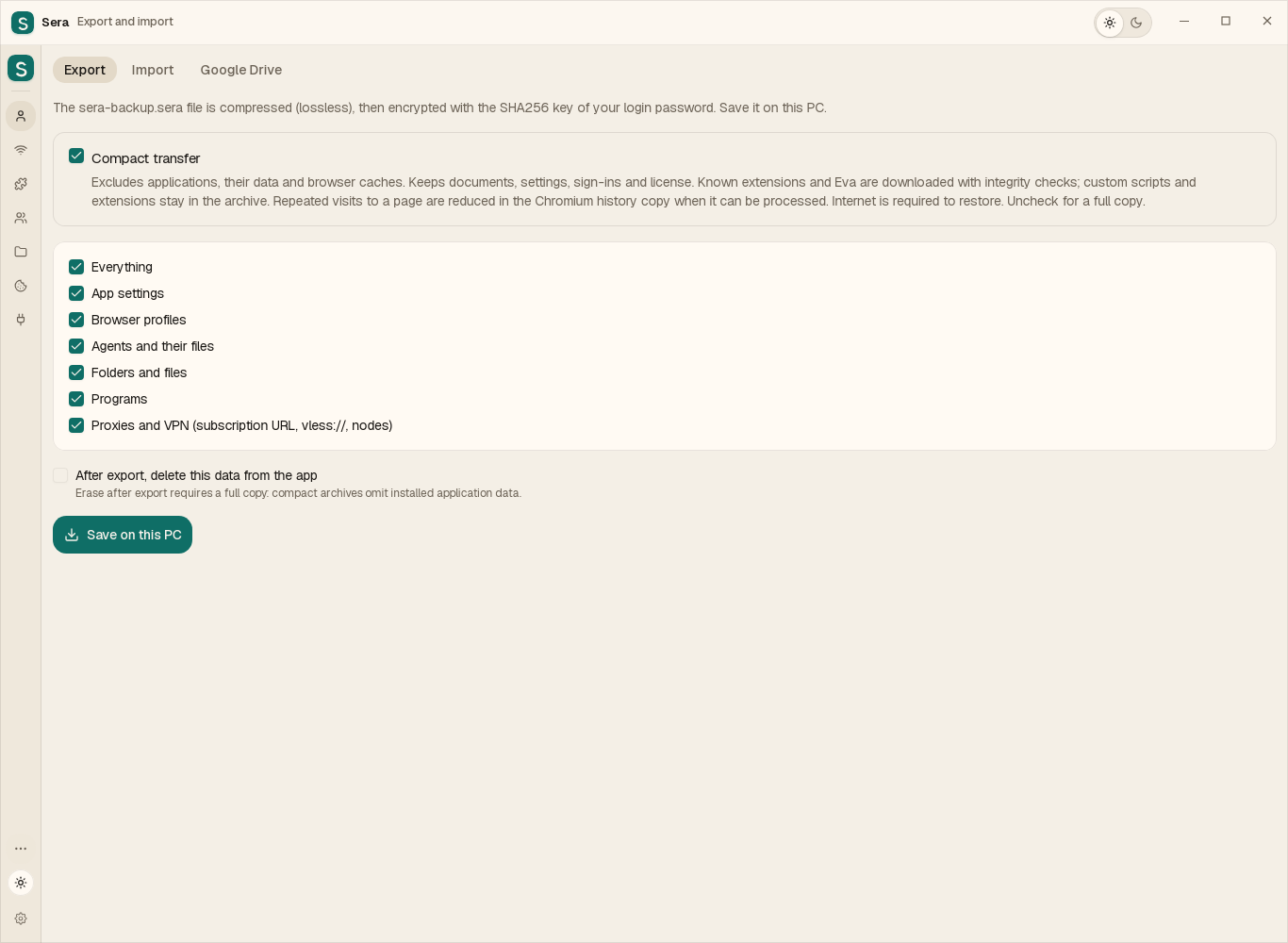
Compact transfer
Excludes applications, their data and browser caches. Keeps documents, settings, sign-ins and license. Known extensions and Eva are downloaded with integrity checks; custom scripts and extensions stay in the archive. Repeated visits to a page are reduced in the Chromium history copy when it can be processed. Internet is required to restore. Uncheck for a full copy.
Move your work to another computer
In Export and import, keep Compact transfer enabled, select your data and save the .sera file. Install the latest Sera from the website on the other computer, sign in with the same passphrase and import that file.
Word, Excel, PDF and TXT documents are kept as complete files, including text, tables, formatting and embedded images. Install the required applications separately on the new computer. Select their new executable files under Programs; names and network settings are kept.
Sera downloads the required browser again. Known store extensions and Eva are downloaded in verified versions; custom extensions and scripts stay in the archive. Websites may require another sign-in, especially when changing operating systems.
Repeated visits to a page are reduced only in a processable Chromium history copy. History on the original computer is unchanged. The browser recreates its cache. Protected profiles stored as a complete encrypted container are kept intact. Cache inside such a container may remain, so that data which cannot be processed is not lost.
Component restoration needs internet. Current storage is not replaced until downloads and checks finish. You can move between Sera sections: transfer progress and selected options remain available.
Uncheck Compact transfer for a full copy. A full copy is larger and usually takes longer. Erasing data after export is available only with a full copy.
09. Local API and bot management
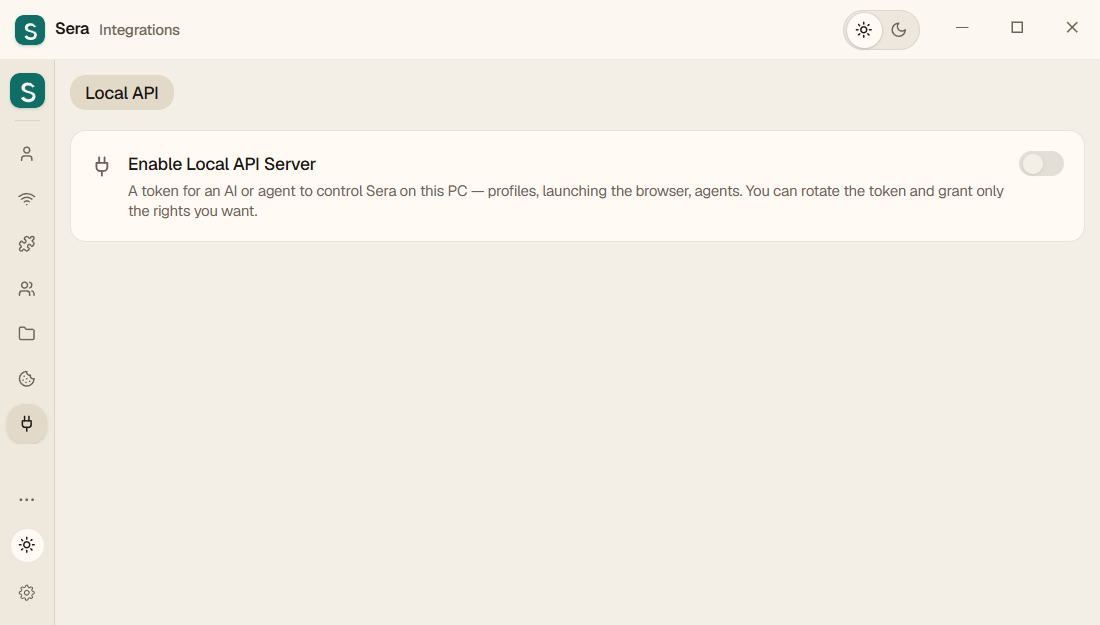
In updated Windows and Linux, in “Integrations” there is one page - “Local API”. It allows your bots and external tools to control what Sera can do on that computer.
- Open "Integrations → Local API".
- Enable the API and the required permissions. Don't give access to settings if your bot doesn't need it.
- Pass the local address and token to the trusted tool. The address 127.0.0.1 works on this PC.
- Check the bot's actions. When access is no longer needed, disable the API or change the token.
10. Changing the login key
- Before changing, save a backup copy and the old key.
- In the settings, open change login key and set a new secure phrase.
- Confirm saving and wait for successful completion.
- Keep the new key in a safe place. Old archives may require the same key with which they were created.
11. Sera is free
Monthly and yearly access cost $0. VPN, paid AI services and extensions are separate.
In the updated Sera, open access settings, choose a month or year for $0 and select Activate free access. Internet is required for activation. Activate again for free when the period ends. If you only see payment buttons, update the app.
Support is optional. A transfer is not required to use Sera and does not purchase a subscription.
Support Sera’s development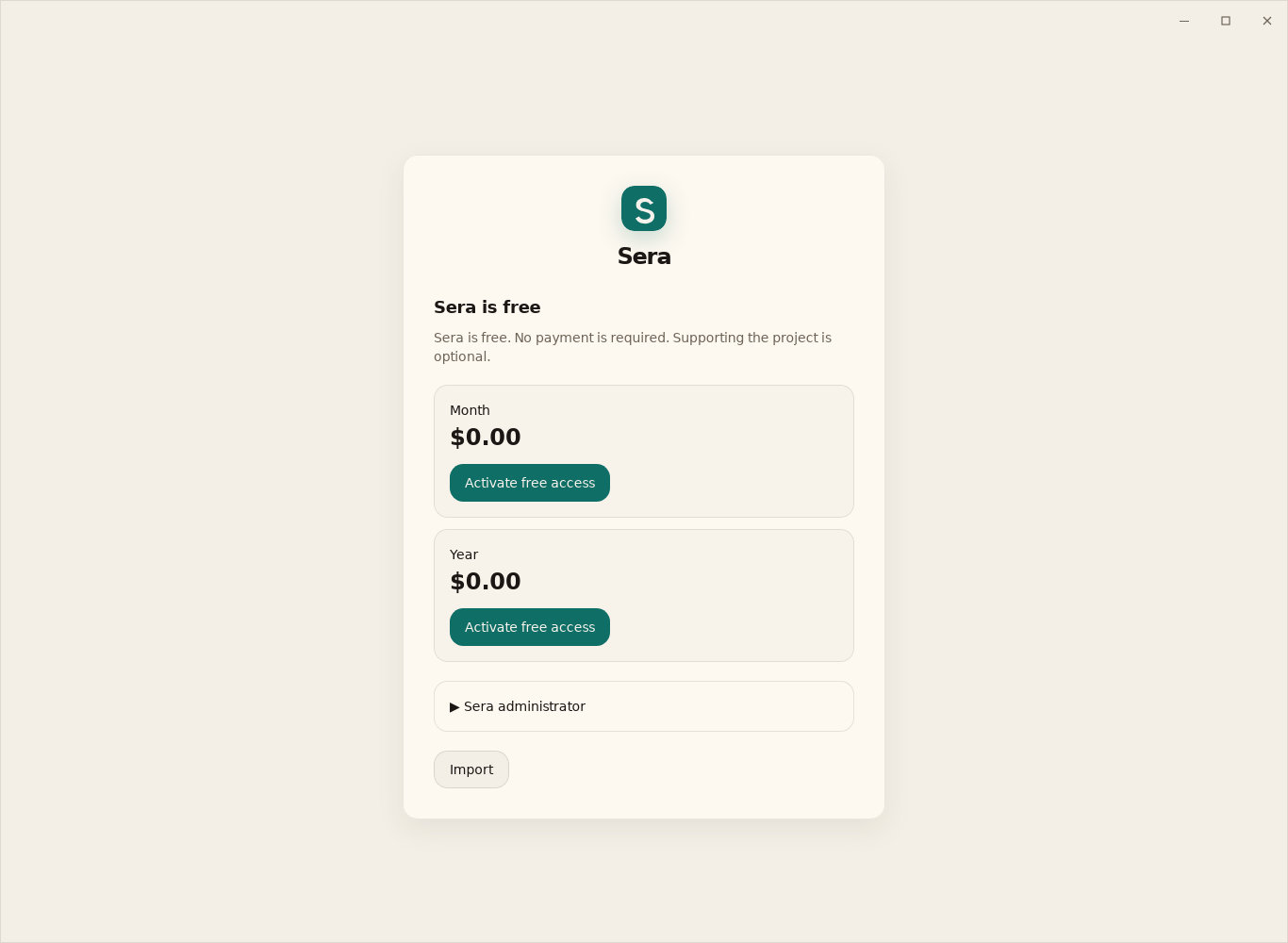
12. If something doesn't work
| Problem | What to check |
|---|---|
| After the update I see old profiles | This is your data on this PC. The update saves them. On the new PC the storage is empty. |
| JS/Python won't start | Is the interpreter installed? Please provide the full path. Do you have the required script dependencies? |
| Drive bot asks for update | Install the new Sera-setup.exe from this page, close the old Sera and start the new one. |
| No permission to settings | In “Integrations → Local API”, enable access to settings. Restart the bot. |
| Google rejected entry | Check the selected account and application status with the developer. For a test application, the account must be allowed. |
| Copy won't open | You need the correct key, a whole archive and the same Google account for Drive. The new key does not replace the old one. |
| VPN doesn't work | Check the subscription period, host and profile assignment. Try another node. |
| The extension did not appear | Assign an extension group to the profile and restart the browser. |
Save the error text without keys, passwords, tokens or VPN links. Indicate what action was performed and what assembly was installed.
13. Text files and protected scratch disk
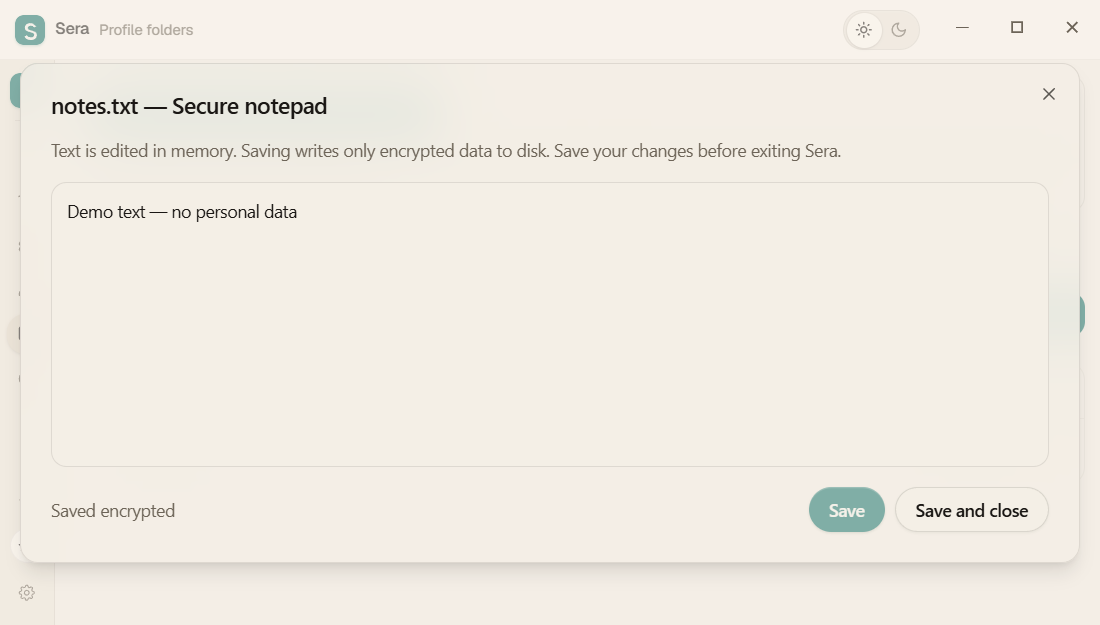
For the first time, select the .txt file from PC and add it to the Sera folder. Then click on its name inside Sera - the built-in notepad will open. Changes are saved in encrypted Sera storage. The original file on the PC remains separate and is not automatically deleted.
TXT: built-in notepad
- Open the folders section and expand the folder you want.
- Click on the file with the .txt extension. It will open in a notepad inside Sera.
- Change the text and click “Save” or Ctrl+S. “Save and Close” finishes working with the document.
- If edits are not needed, select “Close without saving.”
The text is edited in memory and written encrypted to the storage. Sera does not create the usual temporary TXT on disk. UTF‑8 and sizes up to 4 MB are currently supported. If the encoding is not suitable, the source file remains unchanged.
How to delete one file
Click Recycle Bin on the specific file line and confirm deletion. Trash in the folder line deletes the folder, so check the name in the confirmation. A file opened in an editor must first be closed.
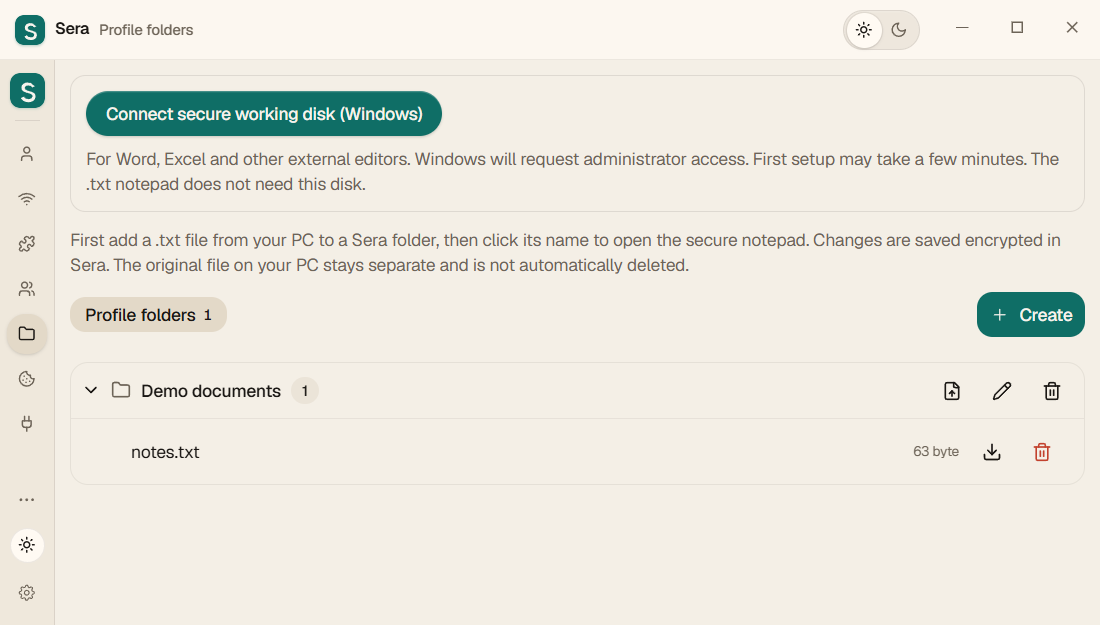
Word, Excel and other editors: Windows
- In the folders section, click "Mount Secure Scratch Disk (Windows)."
- Confirm the Windows prompt. Requires Windows Pro/Enterprise and BitLocker. The first setup may take a few minutes.
- After successful connection, open documents with an external editor.
- Save the document and close the editor. Close Sera as usual: changes are saved back to storage and the scratch disk is disconnected.
Linux and Mac
The TXT editor and individual file deletion are available. The BitLocker working disk is Windows-only. External editors on Linux/macOS may leave plaintext working copies. macOS 13.3 or later is required. Intel and Apple Silicon builds are separate. DMG: drag Sera.app to Applications. ZIP: extract to a new folder; Sera.portable beside the app enables separate data. The Mac build is ad-hoc signed, without Developer ID or Apple notarization. Full runtime testing on modern macOS and Apple Silicon is still outstanding.
Protection limits
External editors can save their own temporary files and autosaves outside the Sera drive. Sera does not control all Word, Excel, OS paging, and programs that already have access to an open session. For text, use the built-in notepad; this reduces the number of open copies.
Before closing Sera
Save your changes and close external editors. Shut down Sera as usual and wait until the data is saved and the scratch disk is disconnected. Forcibly quitting or shutting down your PC while recording may lose your latest changes.
Fast shutdown
In the Sera window, press Ctrl + Shift + Q on Windows/Linux or Command + Shift + Q on Mac. This performs a normal shutdown and saves data. Save changes in open documents first.
When finished, Sera closes the browser profiles it is running, stops their VPNs and proxies, and disconnects the secure scratch disk. If you have unsaved changes in the built-in notebook, save them first and close the notebook.
Minimizing the window to the notification area leaves Sera and browsers running. To finish your work, choose to exit the program or use a keyboard shortcut.
Profile groups
Organize profiles by work, project or person. Creating a group does not itself upload data to the cloud; configure transfers and backups separately.
Programs and terminal
The extensions area includes a Programs tab for applications compatible with your OS and a terminal. The terminal runs commands you enter. Only proxy-aware commands use its proxy settings.
Keyboard shortcuts and exit
Open More → Keyboard shortcuts. Exit with Ctrl + Shift + Q on Windows/Linux or Command + Shift + Q on Mac. Save documents first. Minimizing the window does not quit Sera.
About Sera
Find the application version and information here. Include the version in an error report to help identify whether a fix is already available.
Eva
Eva carries out browser actions. You give your AI a task, the AI sends commands to Sera, and Eva performs them in a separate background Brave or Chrome. Eva has no chat of its own or bundled paid AI subscription.
Eva: where to click, in pictures
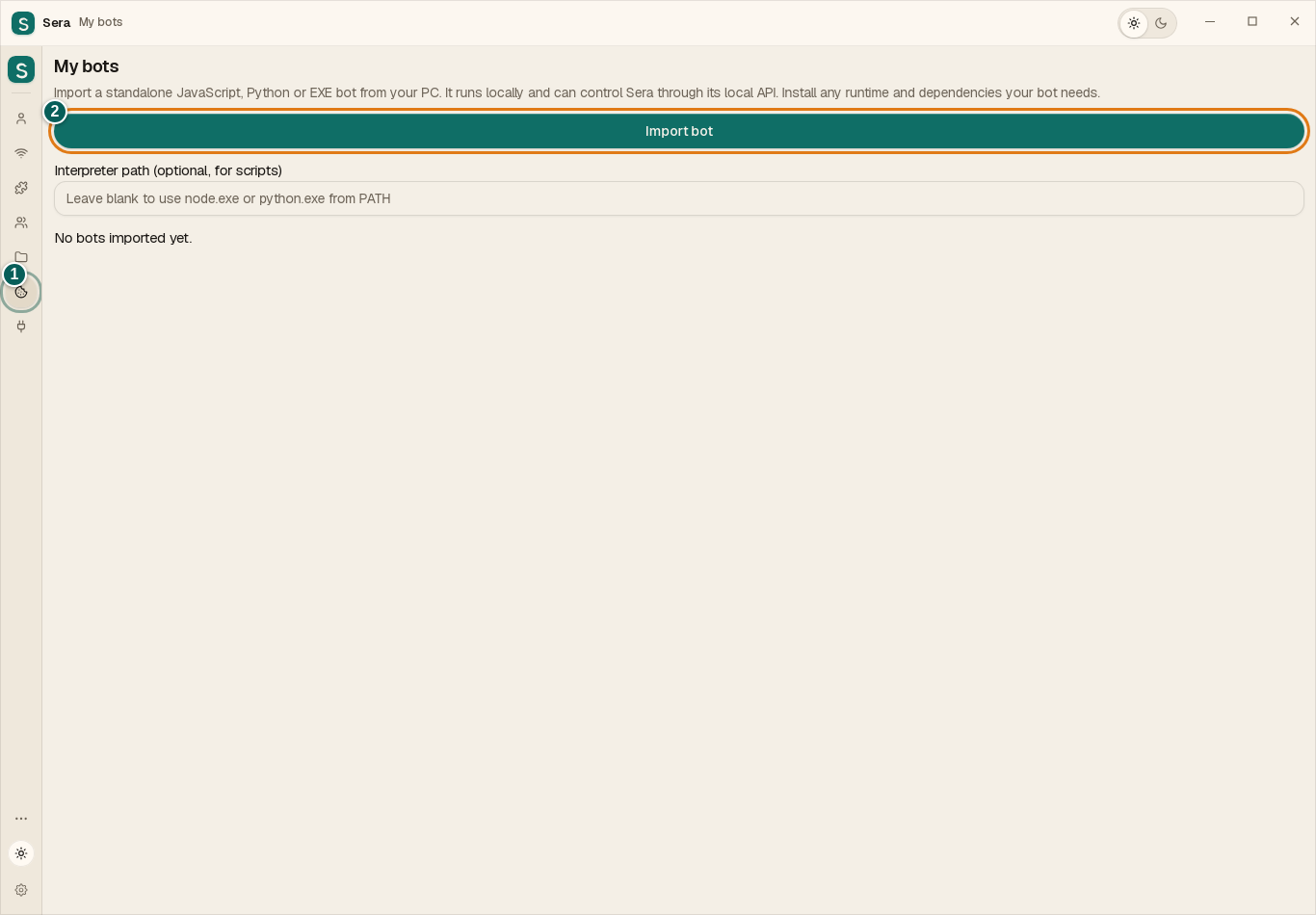
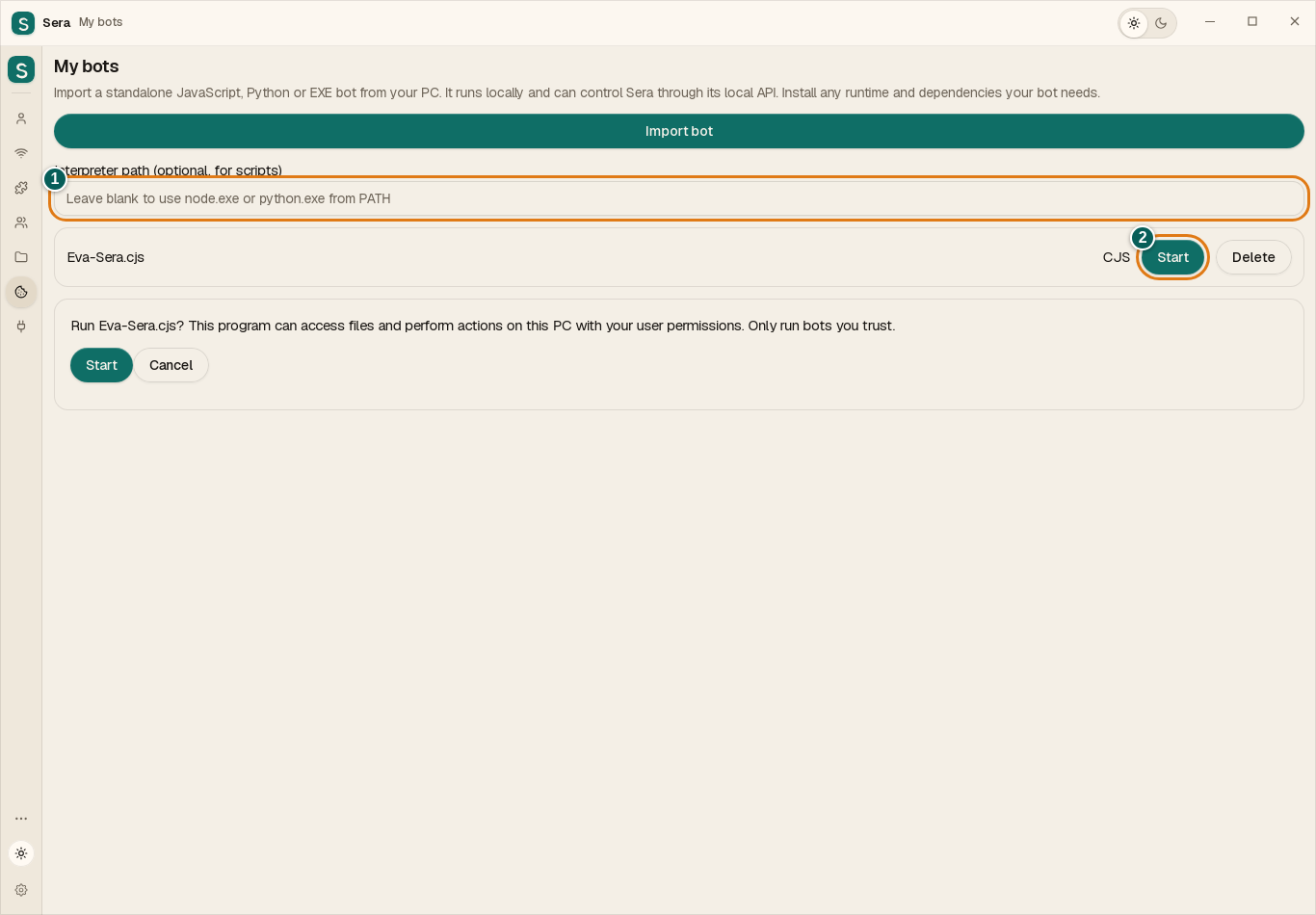
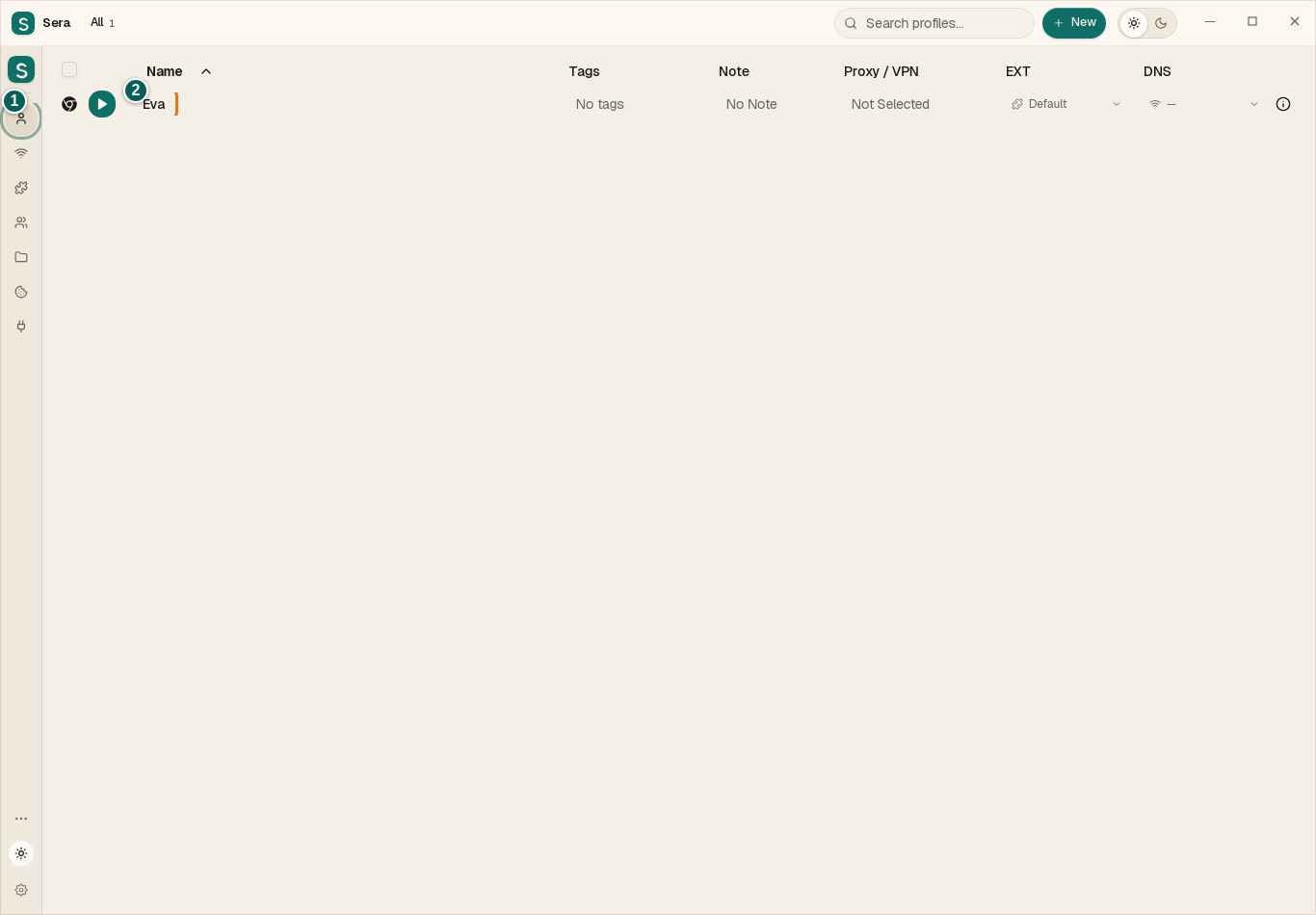
First install Node.js 22+ and Brave or Chrome using the instructions below. These screenshots show a demonstration vault; use your own address and token. Match the numbers in each picture to its explanation.
1. Import Eva’s file
① Open My bots in the left sidebar. ② Click Import bot and select the downloaded Eva-Sera.cjs (or Ева-Sera.cjs) from Downloads on your computer. Do not unzip the file or double-click it to run it.
2. Start Eva
① Normally leave the interpreter path empty. ② Click Start next to Eva-Sera.cjs. Then click Start again in the confirmation below. A successful start shows “Bot is running” and a Stop button.
3. Prepare Eva’s profile
① Open Profiles. If you do not have a separate profile yet, click New at the top right and name it Eva. ② It will appear in this list. Do not launch it manually while Eva uses it: your AI will open the browser through Eva.
4. Connect your AI
Open Integrations → Local API. ① Enable the server. ② Copy the token with the button beside its field; use the address shown under Running on. ③ Allow profiles, browser launch and agents. Enter the address and token in your trusted local AI connector’s settings for Sera. Your vault password is not needed.
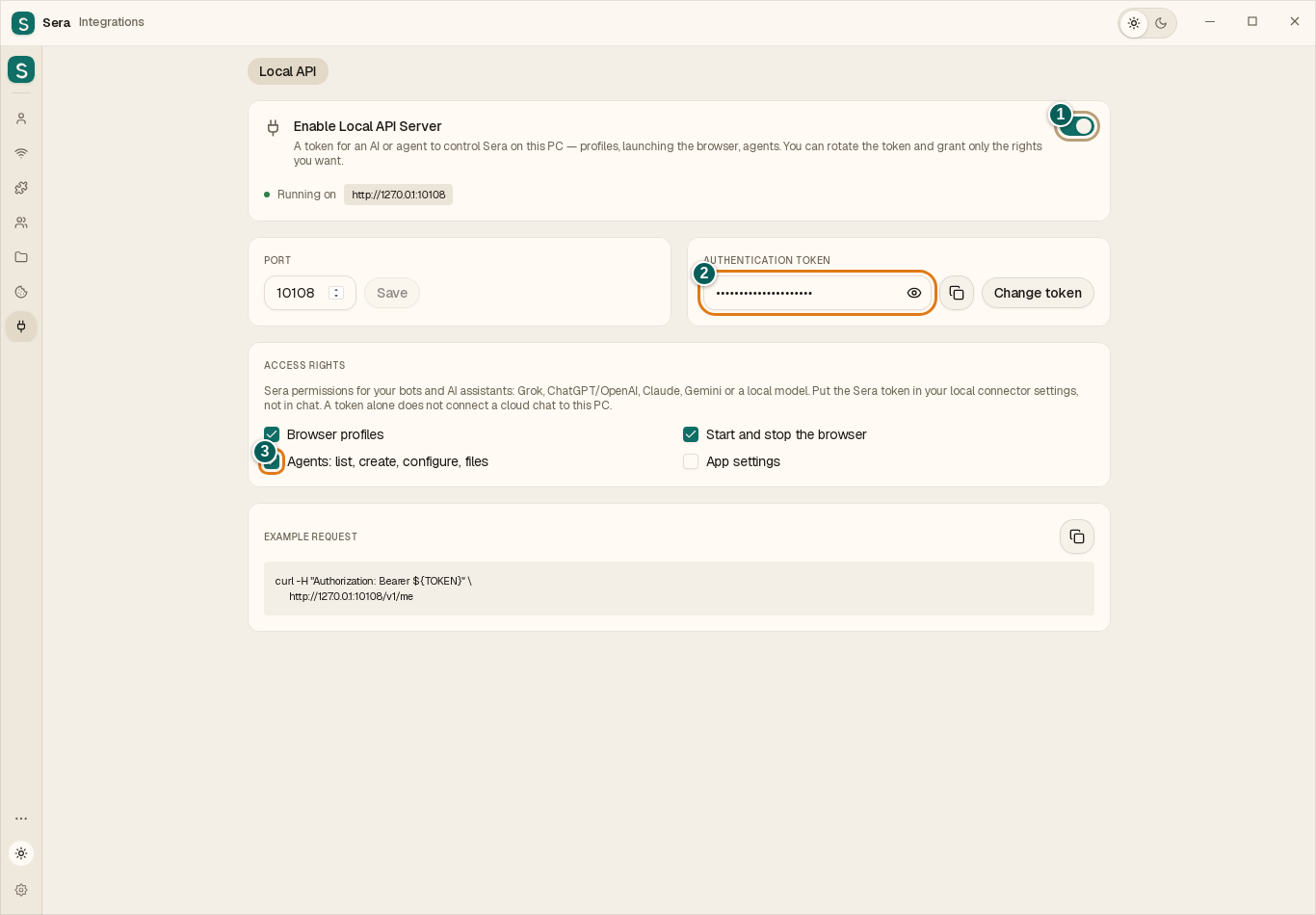
Give your first task
Your AI must be able to call the API on this PC. Sending a token to an ordinary cloud chat does not connect it to Sera. Once connected, ask: “Use profile Eva. Through Eva, open the website I specify, read the page and show the result. Do not submit anything or make purchases.” Keep Sera and Eva running. To stop, return to My bots and click Stop.
What Eva can do
- Open pages and tabs, follow links and read visible page text.
- Click buttons, type into fields, scroll and capture a screenshot.
- List available profiles and tabs; start and stop the browser it launched itself.
How to use Eva
- Complete setup below and start Eva under My bots. Create a separate profile such as Eva, and do not open it manually while automation is running.
- Enable the server under Integrations → Local API. Allow profiles, browser launching and bots. Copy the actual address and token shown there.
- Connect an AI tool that can reach this computer and send API requests. Sending a token to an ordinary cloud chat does not give it access; localhost refers to your computer.
- Give the AI a task and name the profile explicitly. Ask for its intended actions first and the result afterwards. To stop, select Stop for Eva under My bots.
Example requests for a connected AI
“Use only the Eva profile. Open the website I specify, find the delivery terms and return a short summary with a link. Do not purchase or submit anything.”
“In the Eva profile, open the page I specify, enter my text in the field and show a screenshot. Do not press Submit.”
What to keep in mind
This is ordinary Brave/Chrome without Wayfern fingerprint changes. Eva stores its data separately inside the selected profile and does not take over manually opened browsers. It does not bypass CAPTCHA, website restrictions or sign-in confirmations. Authorize payments, messages and deletions separately. VPN is assigned in the profile; check server availability separately. Share the token only with a trusted AI.
Set up Eva step by step
Install these programs on your computer separately from Sera, once only. If Node.js 22 or newer and Brave or Chrome are already installed, skip to starting Eva.
1. Install Node.js
- Click Download Node.js. On the official website, choose an LTS version, 22 or newer.
- On Windows, select Windows, your PC architecture (usually x64), and Windows Installer (.msi). Save it to Downloads.
- Open the .msi file. Choose Next → Install → Finish, keeping the defaults, including Add to PATH. Eva does not need the optional tools for building native modules.
On Mac, choose the .pkg installer for Apple Silicon (ARM64) or Intel (x64). On Linux, select your system on the Node.js website and follow its official installation instructions. A Windows .msi is not for Mac or Linux.
Download Node.js2. Install one browser
Brave OR Google Chrome is enough. If either is already installed, do not reinstall it. Use a button below, download the version for your system, open its installer and finish installation. You do not need to make it the default browser or sign in for Eva.
3. Add and start Eva
- Fully quit Sera, then open it again so it can find the newly installed Node.js.
- Download Eva using the button below. In Sera, open My bots → Upload bot and select Eva-Sera.cjs (or Ева-Sera.cjs). Do not unpack or double-click the file.
- Leave the interpreter path empty for a standard Node.js installation. Click Start. The AI uses the address and token from Sera’s Local API; Eva needs no separate token. Share the token only with a trusted AI.
If Eva does not start
If Sera cannot find Node.js, restart your computer. For a custom installation, enter the node.exe path in the interpreter field under My bots; the usual Windows path is C:\Program Files\nodejs\node.exe. If no browser is found, install Brave or Chrome and restart Sera. For other errors, save the message from Eva’s log.
Eva uses the existing Sera local API and token. Node.js 22+ and installed Brave or Chrome are required. It uses a separate background browser without the Wayfern fingerprint.
Settings in plain language
Open the gear icon, change only what you need, and select Save settings. Some options depend on your operating system.
Appearance / Language
Choose light, dark, system or custom colors. Interface language changes Sera’s labels, not website content.
Default Browser
Open links from other applications through Sera and choose a profile. This is optional for normal use.
System Permissions
Camera and microphone access is for calls and websites that need them. System permission does not automatically grant access to every website.
Integrations
Enabling the API allows external control. The port is the local connection number; use Sera’s displayed address. The token grants selected permissions. Reconfigure clients after changing it.
DNS Blocklist
DNS lists restrict specified domains. If a needed site stops opening, check blocked and allowed domains.
Encryption and sync
Change the current storage key without interrupting the save. Old archives still need their old key; export a fresh copy afterwards.
Disable App Auto Updates
Disable auto-updates stops Sera’s automatic update checks and installation, not browser version management. Linux updates may use the package manager.
Keep Decrypted Profiles In RAM
Keep a decrypted protected-profile copy in memory between launches for faster starts. It uses more RAM and does not protect against access to a running system.
Clear All Version Cache
Refresh cached browser-version information from its sources. This does not delete browsing history or personal storage.
Copy logs
Copy recent logs or open their folder to investigate errors. Check for personal information before sharing them.
Block on fingerprint mismatch
Check that profile language and timezone agree with the network exit. If launch is blocked, review those settings and the selected server.
VPN extension warning
Warn about extensions that may change the connection route. A VPN extension and Sera’s connection can affect one another.
Clear all traffic history
Remove recorded network-traffic statistics. This does not delete a browser profile or erase history held by websites.
Individual profile settings
Profile settings include its name, browser and version, group, extensions and network connection. Window size affects how it fits your screen. Language, timezone and fingerprint parameters affect how the browser appears to websites, not Sera’s interface language. Keep defaults unless you need a specific change; assign VPN deliberately.